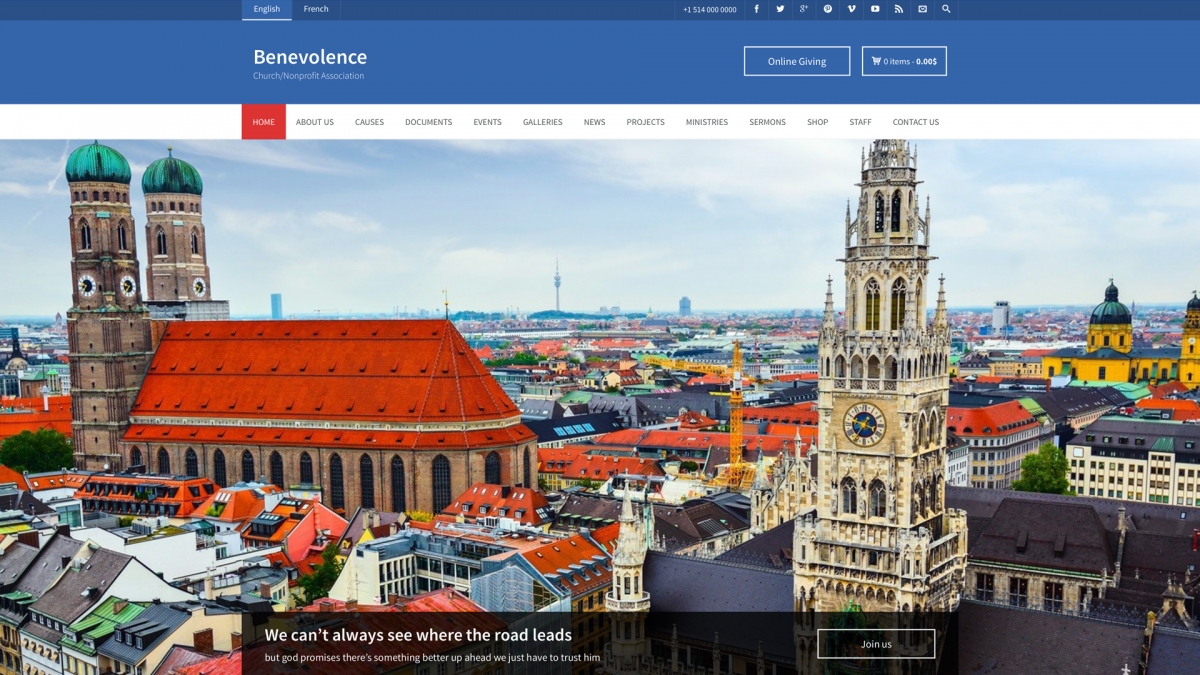
Ready to install your nonprofit WordPress theme? This guide walks you through the process step by step. Learn to upload, activate, and update your charity or church theme.
Benevolence is a charity and nonprofit premium WordPress theme. It works perfectly for churches, synagogues, religious groups, and any nonprofit cause. In this tutorial, we install this theme as an example, but the steps work for any WordPress theme.
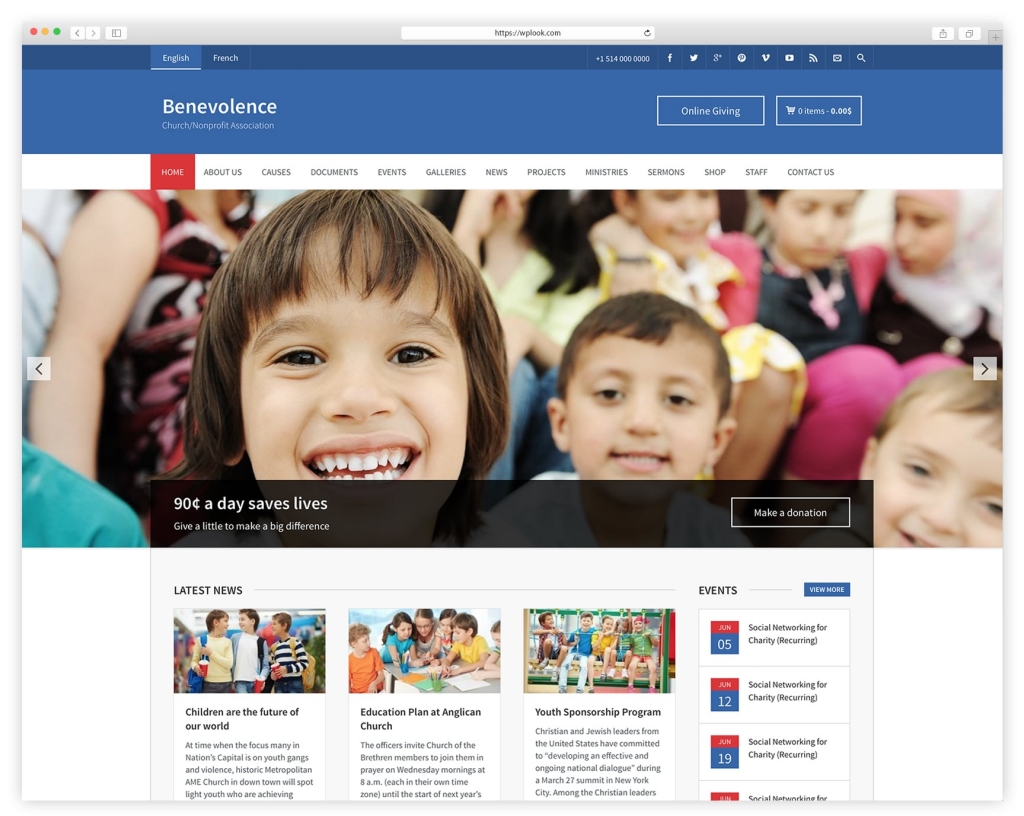
Before You Start
You need a few things before installing your theme:
- WordPress installed on your hosting account
- Access to your WordPress admin dashboard
- Your theme files downloaded from your purchase
- FTP access (optional, for manual upload)
If you purchased a theme from WPlook, download it from your My Account page.
Method 1: Upload Through WordPress Admin
This is the easiest method. No FTP client needed. Just upload through your WordPress dashboard.
- Download the theme archive from your purchase page
- Log into your WordPress dashboard
- Go to Appearance → Themes
- Click Add New at the top
- Click Upload Theme
- Choose the theme zip file (e.g., benevolence-wpl.zip)
- Click Install Now
- Wait for the upload to complete
After installation finishes, you will see a success message. Click Activate to enable the theme.
Method 2: Upload Using FTP
Use FTP if the WordPress upload fails due to file size limits. You need an FTP client like FileZilla.
- Download the theme archive from your purchase page
- Extract the zip file on your computer
- Connect to your server using FTP
- Navigate to
wp-content/themes/ - Upload the extracted theme folder (e.g., benevolence-wpl)
- Wait for the upload to complete
After FTP upload, go to WordPress dashboard → Appearance → Themes. Find your theme and click Activate.
Activating Your Theme
- Log into WordPress at yourdomain.com/wp-admin/
- Go to Appearance → Themes
- Find your uploaded theme
- Hover over the theme thumbnail
- Click Activate
Your theme is now active. Visit your website to see the new design. Some themes prompt you to install required plugins or import demo content.
Installing Required Plugins
Many themes require plugins to function fully. After activation, you may see a notice about required plugins.
Click the notice to install plugins automatically. Or go to the plugins page and install them manually. Common requirements include:
- Page builders (Elementor, WPBakery)
- Slider plugins
- Contact form plugins
- Donation plugins (for nonprofits)
- Event plugins (for churches)
Importing Demo Content
Premium themes often include demo content. This gives you a starting point that looks like the theme preview. You can then customize with your own content.
Look for an import option in your theme settings or Appearance menu. Follow the prompts to import pages, posts, and settings.
After import, replace demo text and images with your organization’s content.
Using a Child Theme
If you plan to customize code, use a child theme. A child theme inherits the parent theme but lets you modify safely. Updates to the parent do not overwrite your changes.
Many premium themes include a child theme in the download. Install and activate the child theme instead of the main theme for customization.
Updating Your Theme
Theme updates fix bugs, add features, and patch security issues. Update regularly but carefully.
- Make a backup of your site
- Go to Appearance → Themes
- Activate a different theme temporarily (like Twenty Twenty-Four)
- Delete the old version of your theme
- Upload the new version
- Reactivate your theme
Important: If using a child theme, only update the parent theme. Never delete your child theme during updates or you lose customizations.
Troubleshooting Common Issues
Stylesheet is missing error: You uploaded the wrong file. Make sure to upload the theme zip, not the full download package. The theme zip contains style.css directly.
Upload file size exceeded: Your hosting limits upload size. Use FTP method or increase WordPress maximum upload file size.
Theme looks different than demo: You need to import demo content and configure settings. Check theme documentation for setup instructions.
Plugins not installing: Check WordPress permissions. Contact your host if plugin installation fails.
Frequently Asked Questions
- Do I need a child theme?You need a child theme if you modify theme code. For basic customization through the Customizer, the parent theme works fine.
- Will I lose content when switching themes?Your posts and pages stay when you switch themes. But theme-specific features like custom widgets or layouts may change.
- Can I try a theme before buying?Most premium themes offer live demos. View the demo to see all features. WPlook themes have detailed demos on product pages.
Conclusion
Installing a nonprofit WordPress theme takes just a few steps. Upload through WordPress or FTP, activate, install required plugins, and import demo content. Then customize for your organization.
For beautiful nonprofit and church themes, explore the Benevolence theme and other nonprofit WordPress themes from WPlook.
Need help with setup? Order theme setup service and we will install and configure your theme professionally.
Get Benevolence Get Hosting Benevolence, Charity, Church, NonProfit, WordPress, WordPress Themes
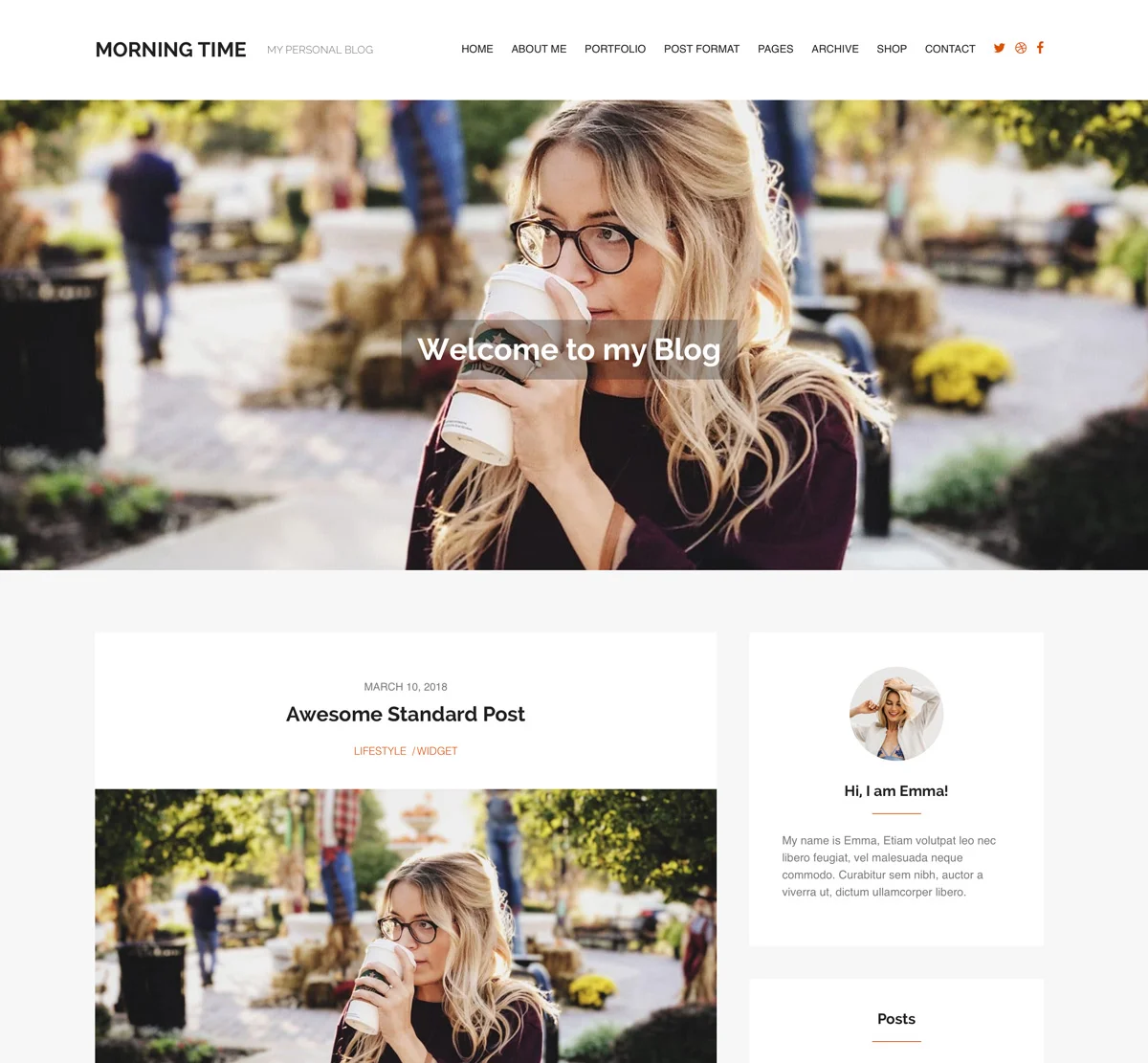
Elevate Your Online Presence with Our Free WordPress Themes
Craft Your Debut Blog or Nonprofit Website with Our Complimentary Themes!
Discover Free Themes