Photo editing transforms good images into great ones. Whether you’re preparing visuals for a WordPress website, social media, or print, the right photo editor app makes all the difference in how your work appears.
This guide covers the best photo editor apps across different platforms and budgets. From professional desktop software to powerful mobile apps, you’ll find options that match your skill level and editing needs.
What to Look for in a Photo Editor
Before choosing a photo editor, consider these essential features:
- Non-destructive editing – Make changes without permanently altering originals
- Layer support – Combine multiple elements and effects
- RAW file support – Work with uncompressed camera files
- Color correction tools – Adjust exposure, white balance, and color grading
- Retouching capabilities – Remove blemishes, unwanted objects, and distractions
- Export options – Save in various formats and quality levels
1. Affinity Photo
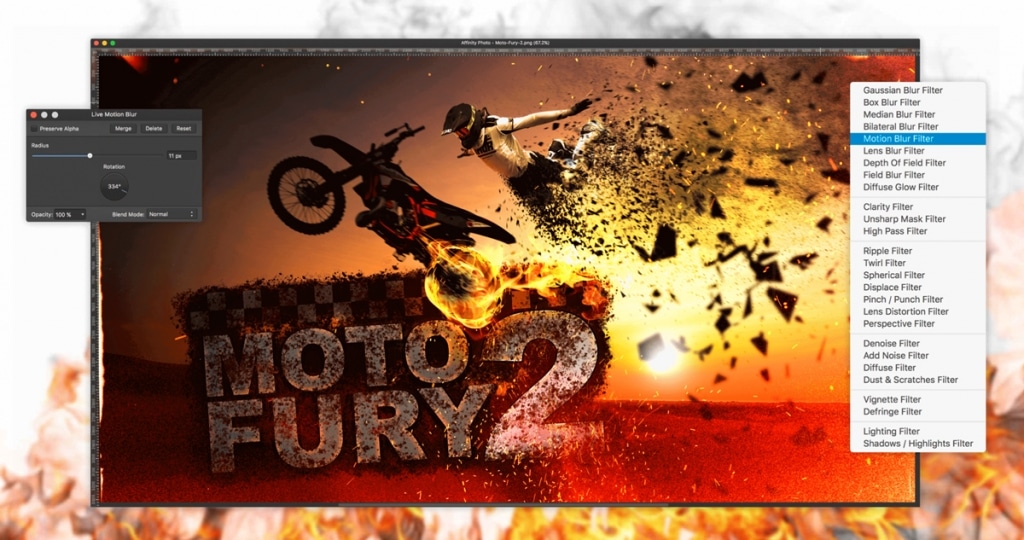
Affinity, now owned by Canva, bundles all three professional apps—Photo, Designer, and Publisher—into one package. It offers professional-grade editing without subscription fees, matching Photoshop’s core functionality at a one-time purchase price.
Key features:
- Full PSD file compatibility
- 360-degree and HDR image editing
- Focus stacking and batch processing
- Professional RAW development
- Real-time live filters
- Extensive brush library
Best for: Photographers and designers who want professional features without ongoing subscription costs.
Platform: Windows, macOS, iPad
Price: $69.99 one-time purchase
2. Adobe Photoshop
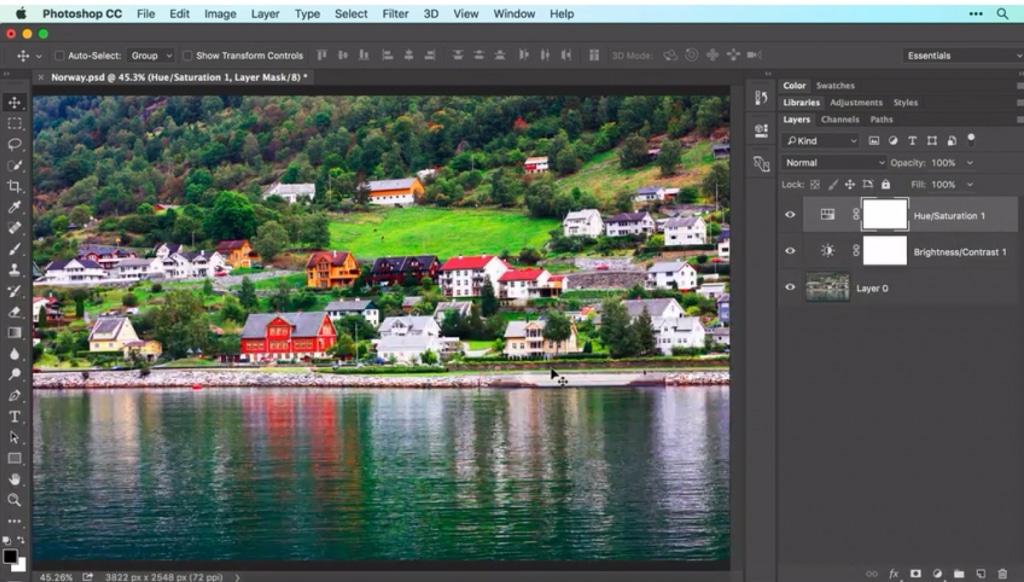
Photoshop remains the industry standard for professional photo editing. Its comprehensive toolset handles everything from basic adjustments to complex compositing and digital art creation.
Key features:
- AI-powered selection and masking tools
- Content-aware fill for removing objects
- Neural filters for one-click enhancements
- Advanced layer and blending options
- Camera RAW integration
- Extensive plugin ecosystem
Best for: Professional photographers, graphic designers, and anyone needing comprehensive editing capabilities.
Platform: Windows, macOS, iPad
Price: $22.99/month (Photography plan includes Lightroom)
3. GIMP
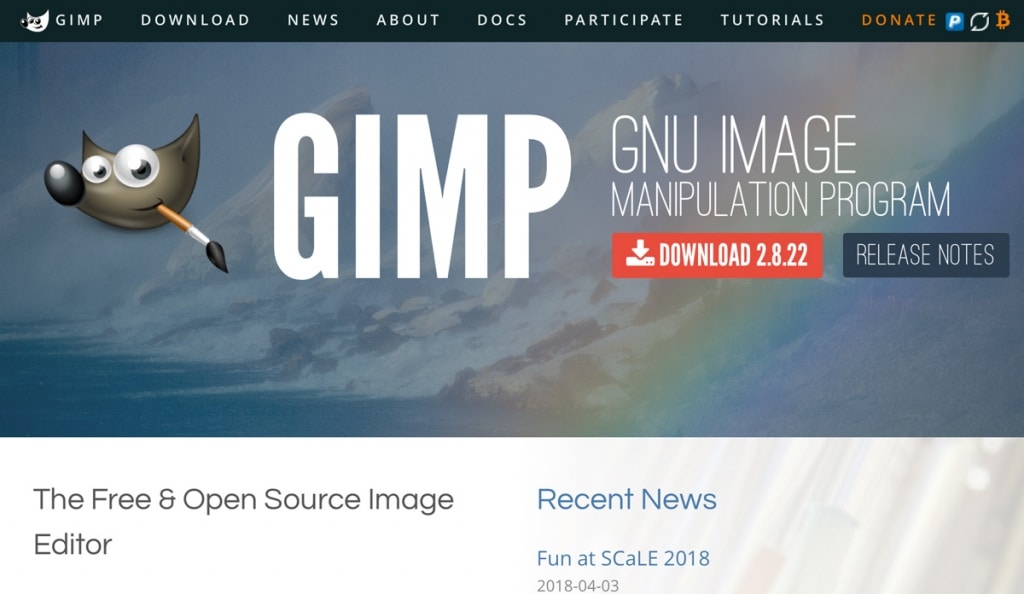
GIMP provides powerful photo editing capabilities completely free. This open-source application offers most features found in premium editors, making it ideal for budget-conscious creators.
Key features:
- Advanced layer and mask support
- Customizable interface and workflow
- Extensive plugin and script support
- High-quality color management
- Support for numerous file formats
- Active community and regular updates
Best for: Anyone wanting professional-level editing without cost, Linux users, and those comfortable customizing their workflow.
Platform: Windows, macOS, Linux
Price: Free
4. Adobe Lightroom
Lightroom excels at photo organization and non-destructive editing. It’s the go-to choice for photographers managing large image libraries who need consistent, efficient workflows.
Key features:
- AI-powered masking and selection
- Preset system for consistent editing
- Cloud sync across devices
- Powerful organization and tagging
- Batch editing capabilities
- Mobile and web access
Best for: Photographers who shoot in RAW and need to process large numbers of images efficiently.
Platform: Windows, macOS, iOS, Android, Web
Price: $9.99/month (1TB cloud storage) or included in Photography plan
5. Pixelmator Pro
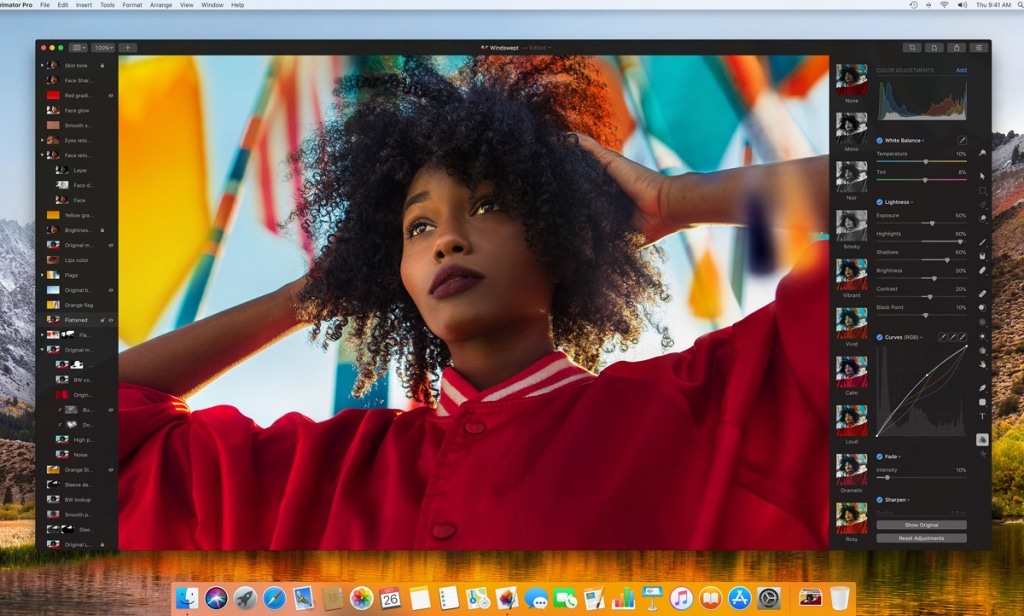
Pixelmator Pro combines powerful editing tools with a clean, Mac-native interface. Its machine learning features automate common tasks while maintaining professional quality.
Key features:
- ML-powered enhance and repair tools
- Non-destructive color adjustments
- Full vector tools support
- macOS integration (Handoff, iCloud)
- Metal-accelerated performance
- PSD compatibility
Best for: Mac users wanting a powerful, elegant photo editor optimized for Apple hardware.
Platform: macOS, iPadOS
Price: $49.99 one-time purchase
6. Capture One
Capture One delivers exceptional RAW processing with color science developed specifically for professional photography. Studio photographers and commercial shooters often prefer it over Lightroom.
Key features:
- Superior color grading tools
- Tethered shooting support
- Advanced layer-based editing
- Custom camera profiles
- Session-based workflow
- Keyboard shortcut customization
Best for: Professional and commercial photographers who demand the highest quality RAW processing.
Platform: Windows, macOS, iPad
Price: $179 perpetual license or $24.99/month subscription
7. Snapseed
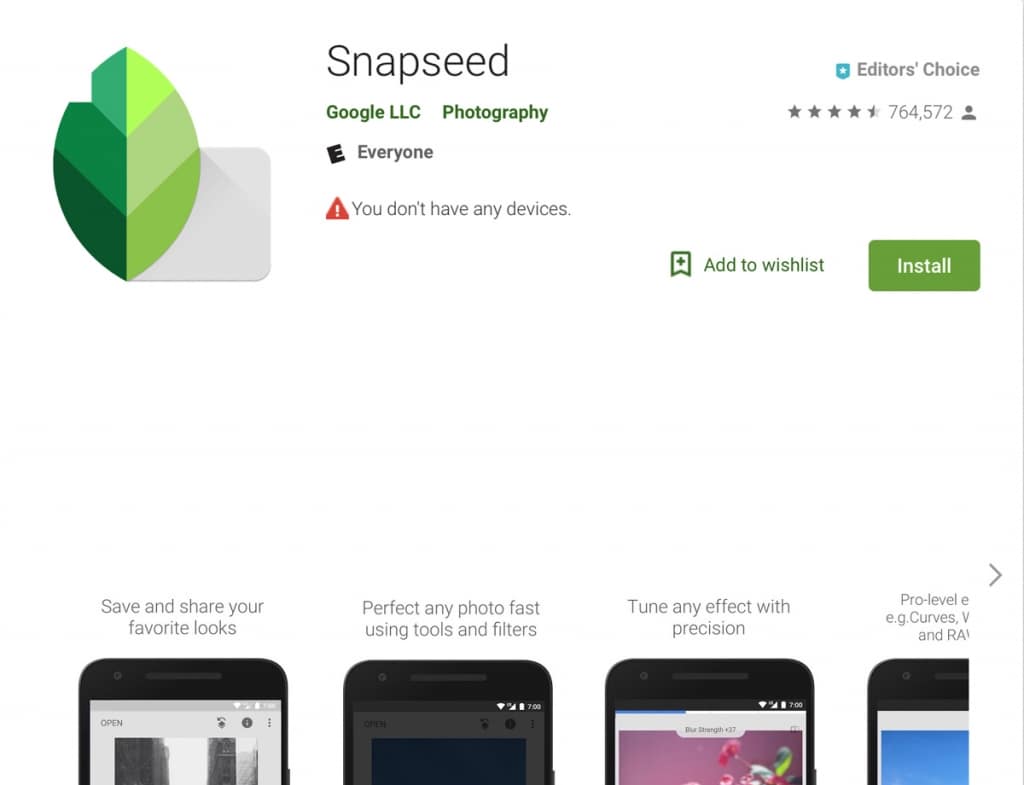
Google’s Snapseed brings desktop-quality editing to mobile devices. Its gesture-based interface makes precise adjustments intuitive, even on smaller screens.
Key features:
- 29 tools and filters
- Selective adjustments with control points
- Healing brush for removing objects
- RAW file editing
- Face enhance and pose correction
- Custom presets (Looks)
Best for: Mobile photographers who want professional editing capabilities without switching to desktop.
Platform: iOS, Android
Price: Free
8. VSCO
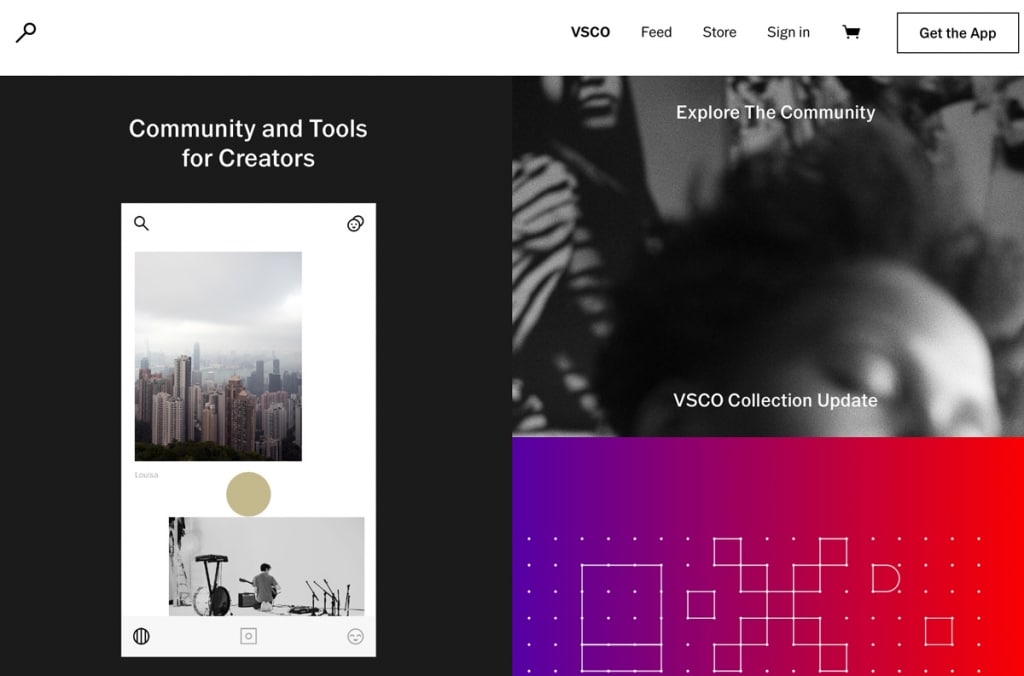
VSCO combines a capable photo editor with film-inspired presets that have defined modern mobile photography aesthetics. Its community features add social elements to the editing experience.
Key features:
- 200+ exclusive presets
- Advanced editing tools
- Video editing capabilities
- Community and inspiration features
- VSCO camera with manual controls
- Montage collage creator
Best for: Content creators seeking consistent, stylized aesthetics for social media.
Platform: iOS, Android
Price: Free with limited features; VSCO Pro $59.99/year
9. Canva
Canva focuses on design creation but includes capable photo editing tools. Its template-based approach makes professional-looking graphics accessible to non-designers.
Key features:
- One-click background removal
- Photo filters and adjustments
- Text and element overlays
- Thousands of templates
- Brand kit management
- Direct social media publishing
Best for: Non-designers creating social media graphics, presentations, and marketing materials.
Platform: Web, Windows, macOS, iOS, Android
Price: Free tier available; Pro $12.99/month
10. Photopea
Photopea replicates Photoshop’s interface and functionality entirely in your browser. No installation required, and it handles PSD files natively.
Key features:
- Photoshop-like interface
- PSD, XD, Sketch file support
- Layer styles and blending modes
- Vector and raster tools
- No installation needed
- Works offline (after initial load)
Best for: Anyone needing Photoshop-style editing without installing software or paying subscription fees.
Platform: Web browser
Price: Free (ad-supported); Premium $5/month removes ads
Photo Editing Best Practices
The best photo editor means nothing without solid editing fundamentals. Apply these practices to improve your results regardless of which software you use:
Always edit non-destructively. Work with adjustment layers, smart objects, or virtual copies rather than directly modifying pixels. This preserves your original image and lets you revise edits later without starting over.
Correct white balance first. Color casts affect every other adjustment you make. Fix white balance before adjusting exposure or saturation to ensure accurate colors throughout your edit.
Use histograms to guide exposure. The histogram shows the distribution of tones in your image. Aim for data across the full range without clipping highlights or shadows unless you’re creating a specific artistic effect.
Apply sharpening last. Sharpening amplifies existing detail but also noise. Complete all other adjustments before sharpening, and apply it at the appropriate amount for your output size and medium.
Develop a consistent editing style. Whether for personal branding or client work, maintaining consistent editing creates a recognizable look. Save presets for your common adjustments and adapt them to individual images rather than starting from scratch each time.
Choosing the Right Photo Editor
Your ideal photo editor depends on your specific needs:
For professional work: Adobe Photoshop or Affinity Photo provide the most comprehensive toolsets for complex projects.
For photography workflows: Adobe Lightroom or Capture One excel at organizing and batch-processing images.
For budget-conscious users: GIMP, Photopea, and Snapseed deliver professional results without cost.
For Mac users: Pixelmator Pro offers excellent value with native Apple integration.
For mobile editing: Snapseed and VSCO provide desktop-quality tools on phones and tablets.
Many photographers use multiple tools together. Lightroom for organization and initial processing, Photoshop for detailed retouching, and Snapseed for quick mobile edits when away from the computer.
Frequently Asked Questions
What is the best free photo editor?
GIMP offers the most comprehensive free photo editing experience on desktop. For mobile, Snapseed provides professional-grade tools without any cost. Photopea works entirely in your browser and handles Photoshop files.
Is Photoshop worth the subscription cost?
For professionals who rely on advanced features daily, Photoshop’s subscription pays for itself in productivity. Hobbyists and occasional users often find better value in one-time purchase alternatives like Affinity Photo or free options like GIMP.
Can I edit RAW photos on my phone?
Snapseed, Lightroom Mobile, and VSCO all support RAW editing on iOS and Android devices. This allows photographers to process camera files directly on their phones without transferring to a computer first.
What photo editor do professional photographers use?
Most professionals use Adobe Lightroom for organizing and initial processing, combined with Photoshop for detailed retouching and compositing. Some prefer Capture One for its superior color tools, particularly in commercial and fashion photography.
How do I learn photo editing?
Start with basic adjustments: exposure, contrast, and color correction. Most applications include tutorials. YouTube offers extensive free learning content for every major photo editor. Practice with your own photos to develop your editing style.
What is the difference between destructive and non-destructive editing?
Destructive editing permanently changes the original image file. Non-destructive editing stores adjustments separately, preserving the original. Most professional applications support non-destructive workflows through adjustment layers, virtual copies, or sidecar files. This approach lets you modify or remove edits at any time.
Should I shoot in RAW or JPEG?
RAW files capture more image data, giving you greater flexibility when editing exposure, white balance, and color. JPEG files are processed in-camera and take less storage space. Shoot RAW for serious photography work where you’ll edit extensively; JPEG works fine for casual snapshots or when storage is limited.
How much should I edit my photos?
Good editing enhances an image without making it look artificial. Start with subtle corrections to exposure and color, then add creative adjustments sparingly. Most professional work involves lighter editing than beginners expect. When in doubt, reduce the intensity of your adjustments.
Related resources: For working with other media types, explore our guides on video editing software and audio editing tools. If you’re building a visual portfolio, see our roundup of photography WordPress themes.
photo editor apps
Elevate Your Online Presence with Our Free WordPress Themes
Craft Your Debut Blog or Nonprofit Website with Our Complimentary Themes!
Discover Free Themes