A code editor is where WordPress developers spend most of their time — editing theme files, writing custom PHP, styling with CSS, and building plugins. The right code editor speeds up your WordPress development workflow, catches errors before they break your site, and makes working with WordPress code genuinely enjoyable.
This guide covers the best code editors for WordPress development in 2026, from lightweight text editors perfect for quick theme edits to full-featured IDEs with PHP debugging and WordPress-specific extensions. We tested each editor for WordPress development workflows — PHP and JavaScript support, theme customization, and plugin development — to help you pick the right tool.
What Makes a Great Code Editor for WordPress?
Before comparing specific editors, here are the features that matter most for WordPress development:
- PHP and JavaScript support — WordPress runs on PHP with a growing JavaScript front-end
- IntelliSense/Autocomplete — Smart completions for WordPress functions and hooks
- Multiple cursors — Edit several template locations simultaneously
- Git integration — Track theme and plugin changes without leaving the editor
- Extension ecosystem — Add WordPress-specific snippets, linting, and debugging tools
- Performance — Opens quickly and handles large WordPress projects smoothly
Visual Studio Code
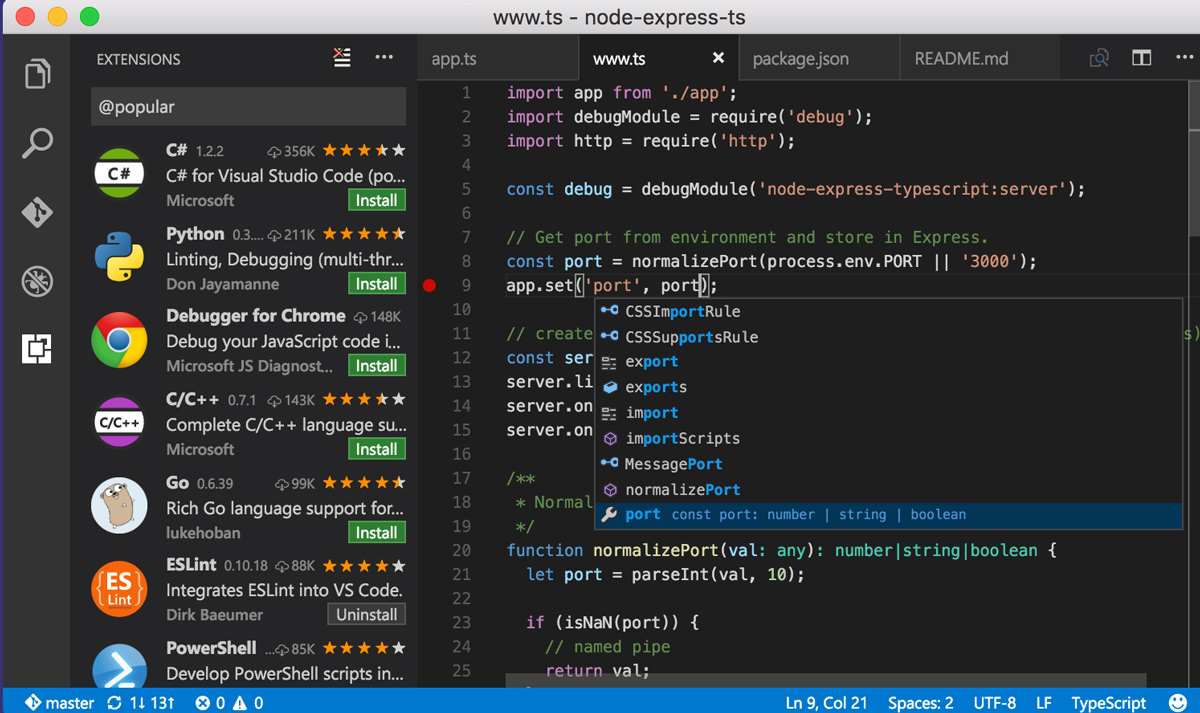
Visual Studio Code dominates the code editor market for good reason — and it’s especially powerful for WordPress development. Microsoft’s free editor has dedicated WordPress extensions including PHP Intelephense for smart PHP completions, WordPress Snippets for quick template tags, and Xdebug integration for stepping through WordPress hooks line by line. With over 30,000 extensions available, you can build a complete WordPress development environment.
For WordPress theme and plugin developers, VS Code’s built-in terminal lets you run WP-CLI commands, its Git integration tracks theme changes visually, and Live Share enables pair programming on WordPress projects in real time. Remote SSH lets you edit theme files directly on your WordPress server. Microsoft’s Copilot AI understands WordPress functions and can generate custom template code, action hooks, and filter callbacks.
Key Features
- IntelliSense with smart code completions
- Built-in Git commands and diff viewer
- Live Share for real-time collaboration
- Remote development via SSH and containers
- Copilot AI assistance integration
- Integrated terminal and debugging tools
Best For: WordPress theme and plugin developers who want a free, versatile editor with dedicated WordPress extensions, PHP debugging, and an unmatched ecosystem.
Cursor

Cursor builds on VS Code’s foundation while adding native AI capabilities that understand your entire WordPress project — not just the file you’re editing. Ask it to “add a custom post type with meta boxes” and it generates the PHP code aware of your theme’s existing structure, hooks, and coding patterns. For WordPress developers, this means faster theme customization and plugin development.
Multi-file AI editing is where Cursor shines for WordPress work. Describe a change like “add WooCommerce support to the theme” and Cursor implements it across functions.php, template files, and stylesheets simultaneously. Full VS Code extension compatibility means all your WordPress development tools carry over. For developers building custom WordPress themes, Cursor’s AI turns hours of boilerplate into minutes.
Key Features
- AI-powered code generation and editing
- Codebase-aware contextual suggestions
- Multi-file AI editing capabilities
- Full VS Code extension compatibility
- Privacy mode for sensitive projects
- Chat interface for code questions
Best For: WordPress developers who want AI-powered theme and plugin development with deep codebase awareness, not just basic autocomplete.
Sublime Text
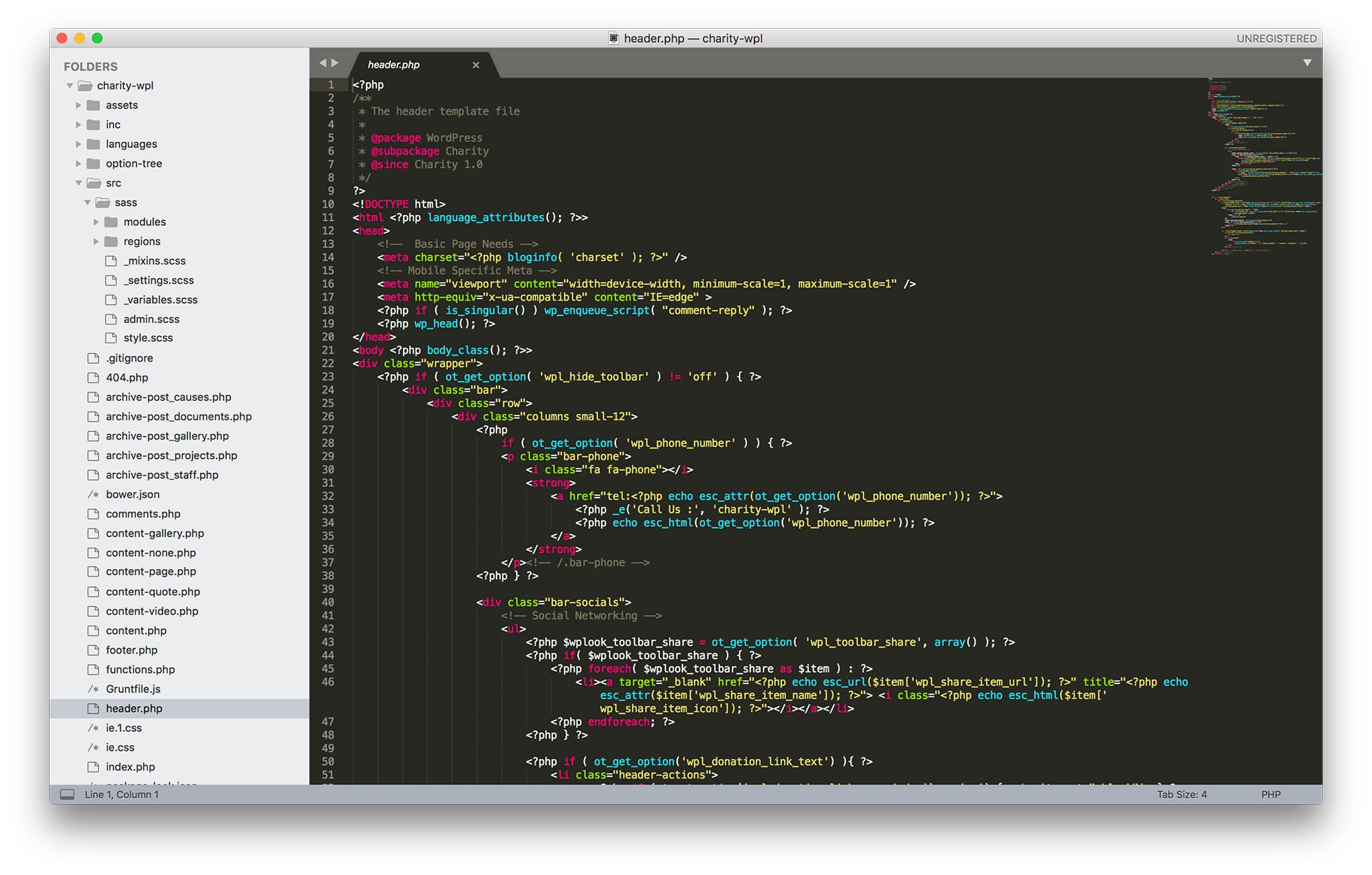
Sublime Text offers exceptional speed that WordPress developers love for quick theme edits. It opens instantly, handles large WordPress projects without slowdown, and Goto Anything lets you jump between template files, functions, and stylesheets with a few keystrokes. When you need to make a fast change to your WordPress theme’s CSS or fix a PHP error, Sublime Text is ready before VS Code finishes loading.
For WordPress development, Sublime Text’s package ecosystem fills most gaps — PHP syntax checking, WordPress function autocomplete, and SFTP plugins for editing theme files directly on your server. Multiple cursors let you rename CSS classes or PHP variables across template files simultaneously. The free evaluation has no time limit, so you can use it for WordPress projects indefinitely.
Key Features
- Lightning-fast startup and file loading
- Goto Anything for instant navigation
- Multiple selections and split editing
- Command palette for quick access
- Cross-platform with single license
- Highly customizable through packages
Best For: WordPress developers who value speed for quick theme edits and prefer a minimalist editor without IDE overhead.
Zed
Zed represents the next generation of code editors, built from scratch in Rust for modern hardware. For WordPress developers working on large theme projects with dozens of template files, Zed’s GPU-accelerated rendering means navigating between PHP, CSS, and JavaScript files feels instant. Every interaction renders at native display refresh rates.
Native real-time collaboration makes Zed valuable for WordPress teams — multiple developers can edit the same theme simultaneously with minimal latency. The built-in AI assistant helps with WordPress code generation and refactoring, while Vim mode support lets experienced developers keep their muscle memory. Zed is open source and growing rapidly in the WordPress community.
Key Features
- GPU-accelerated rendering in Rust
- Native real-time collaboration built in
- Built-in AI assistant for coding help
- Vim mode for modal editing support
- Multi-buffer editing across files
- Minimal memory footprint and fast startup
Best For: WordPress development teams who want cutting-edge performance and real-time collaboration on theme and plugin projects.
JetBrains IDEs
PhpStorm by JetBrains is the gold standard IDE for professional WordPress development. Its deep understanding of PHP semantics provides WordPress-aware code completion — it knows WordPress hooks, filters, template tags, and even understands your theme’s custom functions. When you rename a function in your WordPress plugin, PhpStorm updates every reference across your entire project correctly.
For serious WordPress developers, PhpStorm’s investment pays off through built-in Xdebug support (step through WordPress hooks line by line), database tools for querying wp_posts directly, and WordPress-specific code inspections that catch common mistakes. The HTTP client tests REST API endpoints without leaving the editor — useful when working with the WordPress REST API.
Key Features
- Intelligent code completion and analysis
- Advanced refactoring across entire projects
- Built-in debugging and profiling tools
- Database tools and HTTP client included
- Framework-specific support and tooling
- AI Assistant for smart suggestions
Best For: Professional WordPress developers and agencies who need deep PHP tooling, WordPress-aware code analysis, and built-in debugging.
Vim / Neovim
Vim’s modal editing enables remarkably fast text manipulation — and for WordPress developers who SSH into servers to fix theme issues, it’s often the only editor available. Experienced Vim users edit WordPress PHP files with a speed that mouse-driven editors can’t match. Neovim modernizes the experience with built-in LSP support for PHP autocompletion and WordPress function awareness.
For WordPress server administration, Vim is essential. When your WordPress site goes down and you need to edit wp-config.php or fix a broken theme file over SSH, Vim works where graphical editors can’t reach. The Neovim plugin ecosystem now provides PHP IntelliSense, WordPress hook completion, and Git integration that rival graphical editors.
Key Features
- Modal editing for efficient text manipulation
- Works in any terminal over SSH
- Built-in LSP support in Neovim
- Lua scripting for modern plugins
- Extremely lightweight and fast startup
- Available on virtually every system
Best For: WordPress developers who manage servers, need SSH-based editing, and want long-term productivity gains from modal editing.
Nova
Panic’s Nova is a native Mac code editor designed from the ground up for web development — including WordPress. Unlike Electron-based editors, Nova uses native macOS frameworks for a polished experience. Its built-in SFTP publishing lets you deploy WordPress theme changes directly to your server without separate FTP software.
For Mac-based WordPress developers, Nova’s local PHP development environment means you can test theme changes locally before pushing live. The extension library adds WordPress-specific features, and the split view lets you work on PHP and CSS side by side. If you develop WordPress themes exclusively on a Mac and value design quality, Nova offers a premium experience no cross-platform editor can match.
Key Features
- Beautiful native macOS user interface
- Built-in publishing to remote servers
- Local development environment included
- Extension library for added languages
- Split views, tabs, and sidebar panels
- Terminal and Git integration built in
Best For: Mac-based WordPress developers who appreciate native app quality, integrated SFTP deployment, and local PHP testing.
Notepad++
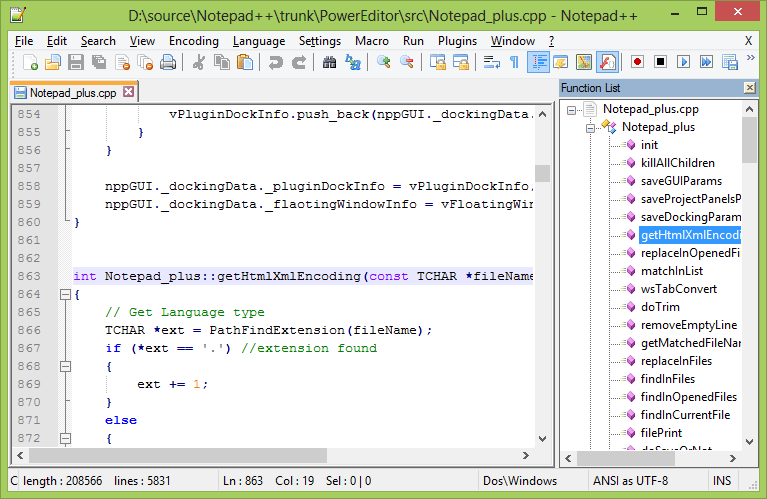
Notepad++ remains one of the most popular text editors on Windows for quick WordPress file edits. It opens instantly, highlights PHP, CSS, HTML, and JavaScript out of the box, and handles WordPress configuration files like wp-config.php without the complexity of a full IDE. For Windows-based WordPress administrators who need to make fast changes, Notepad++ gets the job done.
The plugin architecture extends Notepad++ with FTP clients for editing WordPress files on remote servers, code formatting for cleaning up messy theme code, and compare tools for diffing theme versions. Regex-powered search and replace is useful for bulk updates across WordPress template files. It’s free, open source, and has been trusted by WordPress developers for over two decades.
Key Features
- Lightweight startup with low memory usage
- Syntax highlighting for 80+ languages
- Search and replace with regex support
- Plugin architecture for extensibility
- Macro recording for repetitive tasks
- Tabbed interface with split view
Best For: Windows-based WordPress administrators who need a lightweight editor for quick theme edits, wp-config changes, and configuration files.
BBEdit
BBEdit has served Mac developers since 1992 and remains trusted for WordPress development because of its rock-solid stability. When you need to search and replace across hundreds of WordPress template files, BBEdit’s grep pattern matching handles it without breaking a sweat. It never loses your work — critical when editing live WordPress theme files.
For WordPress developers, BBEdit’s SFTP browsing lets you edit theme files directly on your WordPress server, and multi-file search and replace makes bulk updates across an entire WordPress theme painless. AppleScript automation can streamline repetitive WordPress development tasks. BBEdit’s free mode covers core editing features, so you can use it for WordPress work without paying.
Key Features
- Powerful grep pattern matching system
- Multi-file search and replace tools
- Text transformation and cleanup
- Git integration and diff viewing
- FTP and SFTP remote file browsing
- AppleScript automation support
Best For: Mac-based WordPress developers who need powerful text processing, reliable grep searching across theme files, and rock-solid stability.
Helix
Helix offers a modern take on modal editing with built-in LSP support for PHP — meaning WordPress function autocompletion works out of the box without installing plugins. Unlike Vim, which requires extensive configuration, Helix provides Tree-sitter syntax highlighting and smart autocompletion for PHP, JavaScript, CSS, and every language WordPress developers use, immediately after installation.
For WordPress developers attracted to terminal-based editing but put off by Vim’s setup overhead, Helix is the answer. Tree-sitter understands PHP code structure rather than just matching patterns, resulting in more accurate syntax highlighting for WordPress template files. The selection-first editing model makes multi-cursor editing across WordPress template tags more intuitive.
Key Features
- Built-in LSP support without plugins
- Tree-sitter for accurate syntax parsing
- Selection-first multiple cursor editing
- Zero configuration needed to start
- Fast and lightweight terminal editor
- Written in Rust for performance
Best For: WordPress developers who want modal editing with PHP support out of the box, without Vim’s configuration overhead.
Code Editor Best Practices for WordPress Development
The best code editor is one you’ve configured specifically for WordPress development. Apply these practices to maximize your productivity:
Install WordPress-specific extensions first. Start with PHP IntelliSense, WordPress Snippets, and a linting tool for your editor. These three extensions cover most WordPress development needs. Add others only when you encounter specific requirements.
Set up local WordPress development. Configure your editor to work with a local WordPress installation using tools like LocalWP, MAMP, or Docker. This lets you test theme changes instantly without pushing to a live server.
Use Git for theme version control. Track every change to your WordPress theme with Git integration. This makes rolling back broken changes easy and helps you collaborate with other developers on WordPress themes.
Learn keyboard shortcuts incrementally. Each week, learn one or two new shortcuts for actions you perform repeatedly — like switching between PHP and CSS files, or searching across your entire WordPress theme directory.
Choosing the Right Code Editor for WordPress
Your ideal editor depends on your WordPress development workflow:
For WordPress theme development: VS Code or PhpStorm provide the best PHP tooling with WordPress-aware autocompletion.
For quick WordPress edits: Sublime Text, Notepad++, or BBEdit open instantly for fast theme file changes.
For AI-powered WordPress development: Cursor understands your theme’s codebase and can generate WordPress code contextually.
For WordPress server work: Vim or Helix run in any terminal over SSH for editing wp-config.php and theme files on live servers.
For WordPress team collaboration: VS Code Live Share or Zed provide real-time pair programming on theme projects.
Many WordPress developers use multiple editors: PhpStorm or VS Code for large theme projects and Sublime Text or Vim for quick fixes. For managing your development projects, explore time tracking apps to monitor your productivity. If you’re starting a WordPress blog, any of these editors will help you customize your theme.
Frequently Asked Questions
- What is the best code editor for WordPress development?Visual Studio Code is the best free code editor for WordPress development. It has dedicated WordPress extensions, PHP debugging support, and an unmatched ecosystem. For professional WordPress developers willing to pay, PhpStorm by JetBrains offers deeper PHP analysis and WordPress-specific code inspections.
- What is the difference between a code editor and an IDE?Code editors focus on text editing with syntax highlighting and basic features. IDEs like PhpStorm include built-in debuggers, profilers, database tools, and deep code analysis. For WordPress development, the line has blurred — VS Code with extensions provides near-IDE functionality for free, while PhpStorm offers the most complete WordPress-specific IDE experience.
- Do I need a code editor to customize WordPress themes?For basic customizations, the WordPress Customizer and block editor may be sufficient. But for meaningful theme modifications — editing PHP templates, custom CSS, or building child themes — a proper code editor is essential. It provides syntax highlighting, error detection, and search tools that WordPress’s built-in editor lacks.
- Which code editor extensions should I install for WordPress?Start with PHP Intelephense (smart PHP completions), WordPress Snippets (template tags and functions), and PHP Debug (Xdebug integration). For front-end work, add Emmet for HTML shortcuts and a CSS IntelliSense extension. Keep extensions minimal — too many slow down your editor and create conflicts.

Hi Diana
I’m surprised you do not have dreamweaver on the list??
Do you know which editors can connect to FTP and make it possible to upload edited files on the run? I know Dreamweaver can do this and i know earlier versions of sublime couldn’t and that is one of the reasons why i prefered dreamweaver. I don’t know if Sublime can do it today… It is much faster just to save the file and press upload instead of save, switch to ftp program find the file and upload…
When all that is said, i would prefer Sublime, right after dreamweaver 😉
Hi @Heine,
I used to work with Dreamweaver ~ 10 years ago, it’s a nice editor and YES it works well with FTP. Another alternative could be the Aptana Studio. For SublimeText 2 or 3 you have to install an FTP package. I have never tested it and I can’t tell you how easy it’s to work with it, you can give it a try.
I must say, a must-read guide for every coder. It is a great joy to work with it.Thanks for your valuable suggestions, I glad to inform you that I have decided to take your advice and implement it soon.
Is there a reason why you did not include VScode? Honestly, should be No. 1 on this list.
I’ll have to check VScode out! Thanks for the recommendation!
I agree – Visual Studio Code should be number one on this list… do check it out, its a brilliant editor with some really amazing plugins!
Nice write up!
I use Sublime text to code, it’s cool.