WordPress backups protect everything you’ve built. A hack, server failure, or bad update can destroy your site in seconds. With proper backups, you restore your site in minutes instead of starting over from scratch.
This guide covers the 8 best WordPress backup plugins available in 2026. Each offers different features for scheduling, storage, and restoration. Find the right solution for your backup needs. This guide is part of our complete WordPress plugins guide.
Best WordPress Backup Plugins
UpdraftPlus
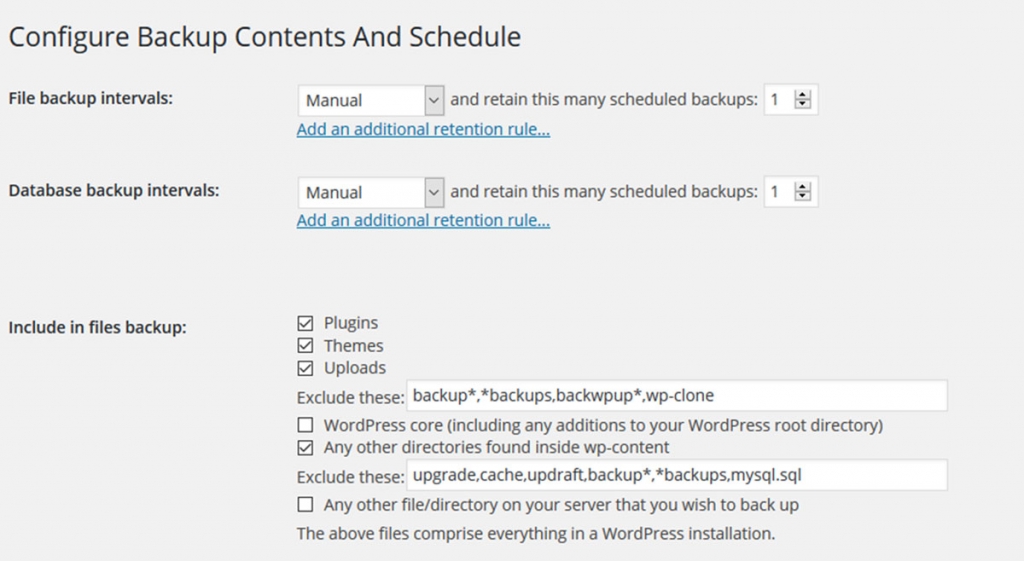
UpdraftPlus ranks as the most popular WordPress backup plugin with over 3 million active installations. The free version includes scheduled backups and cloud storage options that most plugins reserve for premium tiers. Back up to Dropbox, Google Drive, Amazon S3, or remote FTP servers.
Key Features
- Free scheduled backups with multiple cloud storage options
- Separate database and file backups for flexibility
- One-click restoration from the WordPress dashboard
- Email notifications for backup confirmation
- Incremental backups available in premium version
Best For: Most WordPress site owners who want a reliable, free backup solution with cloud storage and scheduling built in.
Duplicator
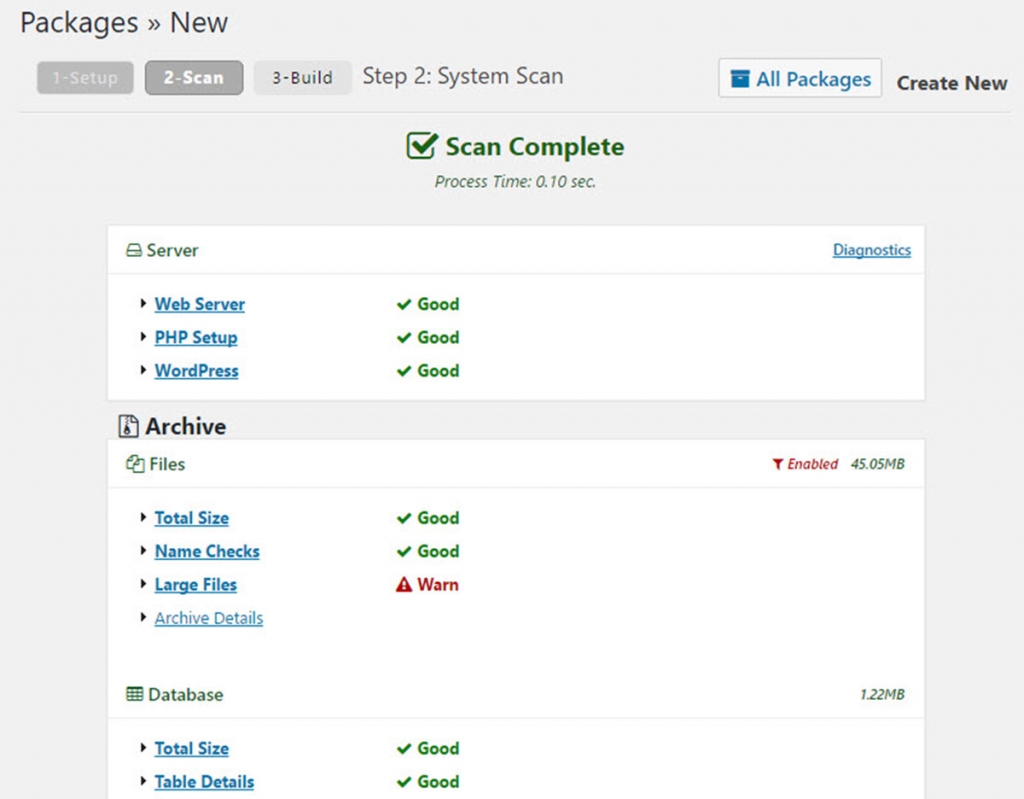
Duplicator excels at both backups and site migration. The plugin packages your entire WordPress site into a single archive file. Move sites between hosts, create local copies for development, or store backups off-site. Over 25 million downloads prove its reliability.
Key Features
- Complete site packaging into a single archive file
- Easy migration between hosts with installer script
- Database duplication and URL replacement
- Scheduled backups and cloud storage in Pro version
- Multisite support in Pro version
Best For: Developers and site owners who need both backup and migration capabilities in one tool, especially when moving sites between hosts.
BlogVault
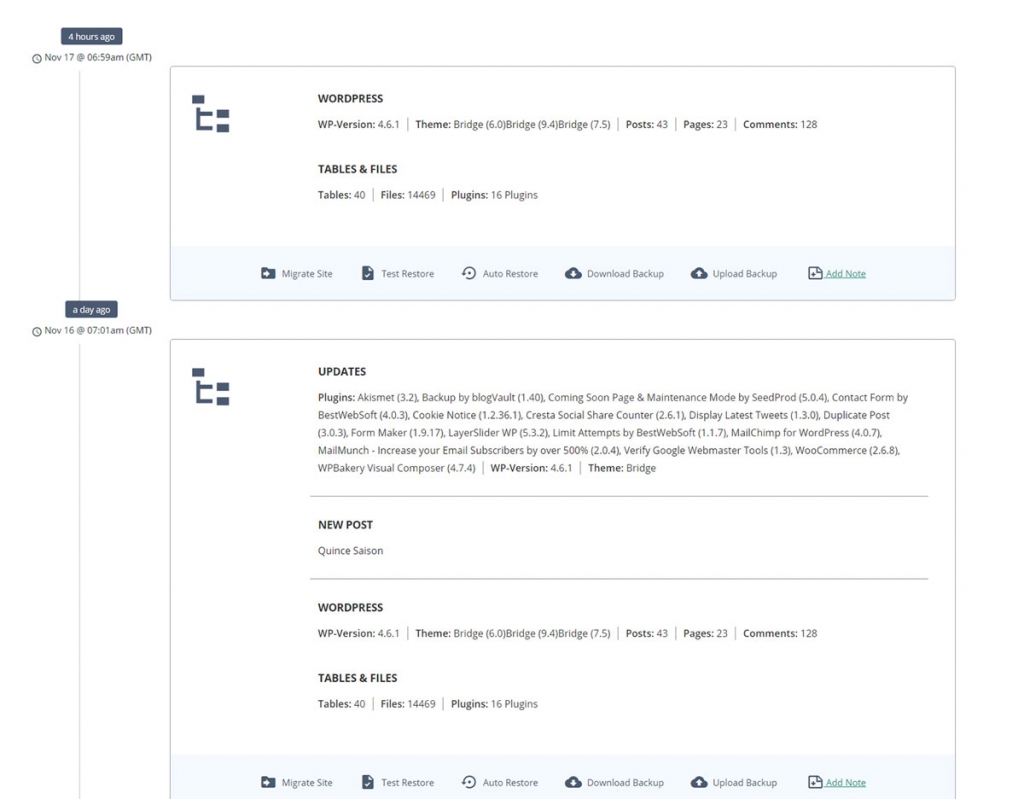
BlogVault operates as a SaaS backup service rather than a traditional plugin. Backups run on BlogVault’s servers, so your site performance stays unaffected. The service stores backups securely off-site with 90-day history and real-time backup options.
Key Features
- Off-site backup processing with zero server impact
- Real-time backup option for dynamic sites
- 90-day backup history with easy restore
- Built-in staging site for safe testing
- WooCommerce-aware backups that never miss transactions
Best For: WooCommerce stores and high-traffic sites that need real-time backups without impacting site performance.
Jetpack Backup (VaultPress)
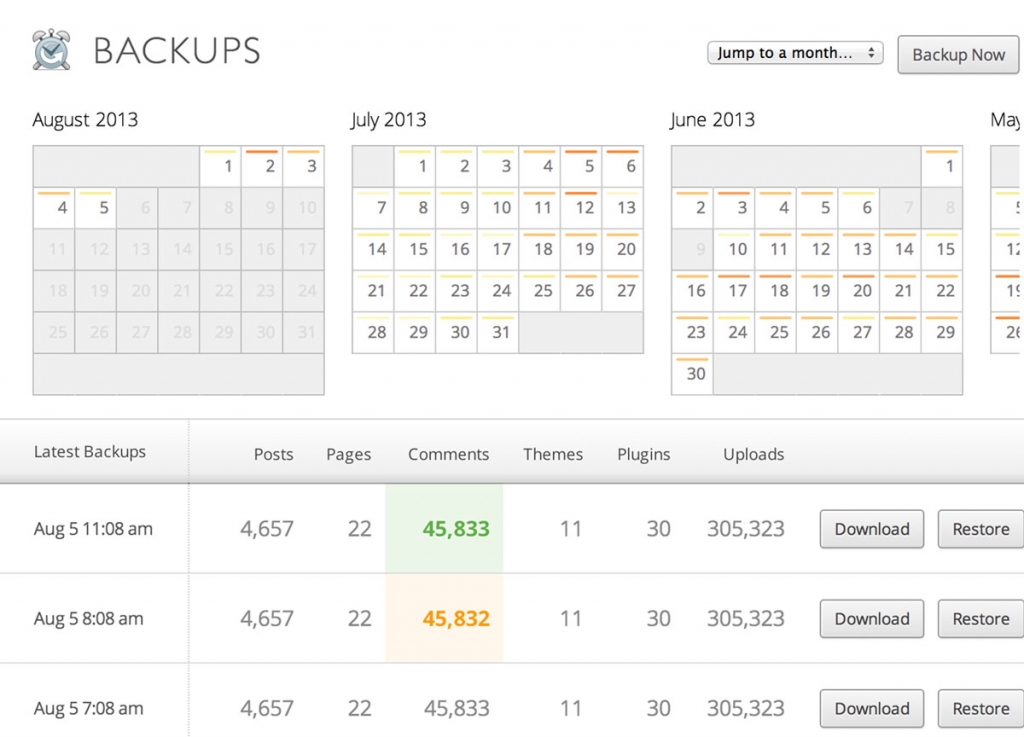
VaultPress now operates as Jetpack Backup, part of the Jetpack plugin suite by Automattic, the company behind WordPress.com. Real-time backups capture every change to your site and store them on Automattic’s secure servers with unlimited storage.
Key Features
- Real-time backup protection powered by Automattic
- Unlimited backup storage on secure servers
- One-click restoration even if dashboard is inaccessible
- Activity log tracking every site change
- Off-site restore capability for complete failures
Best For: Site owners who want the reliability and infrastructure of Automattic behind their backups, with real-time protection and unlimited storage.
BackupBuddy
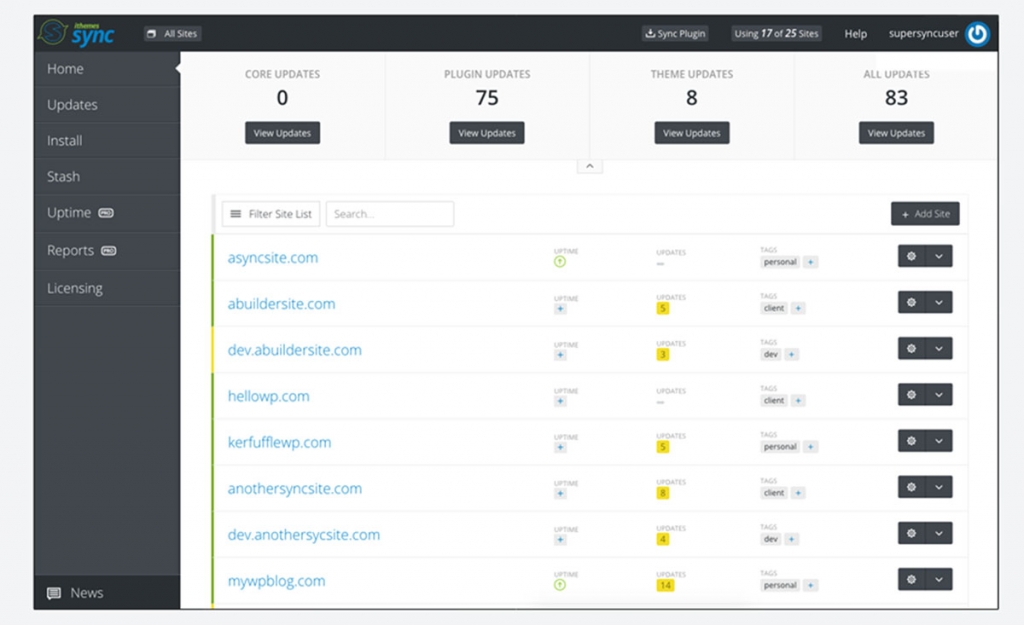
BackupBuddy pioneered WordPress backups when it launched in 2010. Now part of SolidWP, this premium-only plugin offers comprehensive protection with features developed over years of experience. The ImportBuddy tool restores sites to new servers without WordPress installed.
Key Features
- Proven reliability since 2010 with consistent updates
- ImportBuddy standalone restoration tool
- Stash Live for real-time cloud backups
- Built-in malware scanning
- Automatic backup cleanup and rotation
Best For: Users who want a proven, premium backup solution with standalone restore capabilities and malware scanning included.
BackWPup
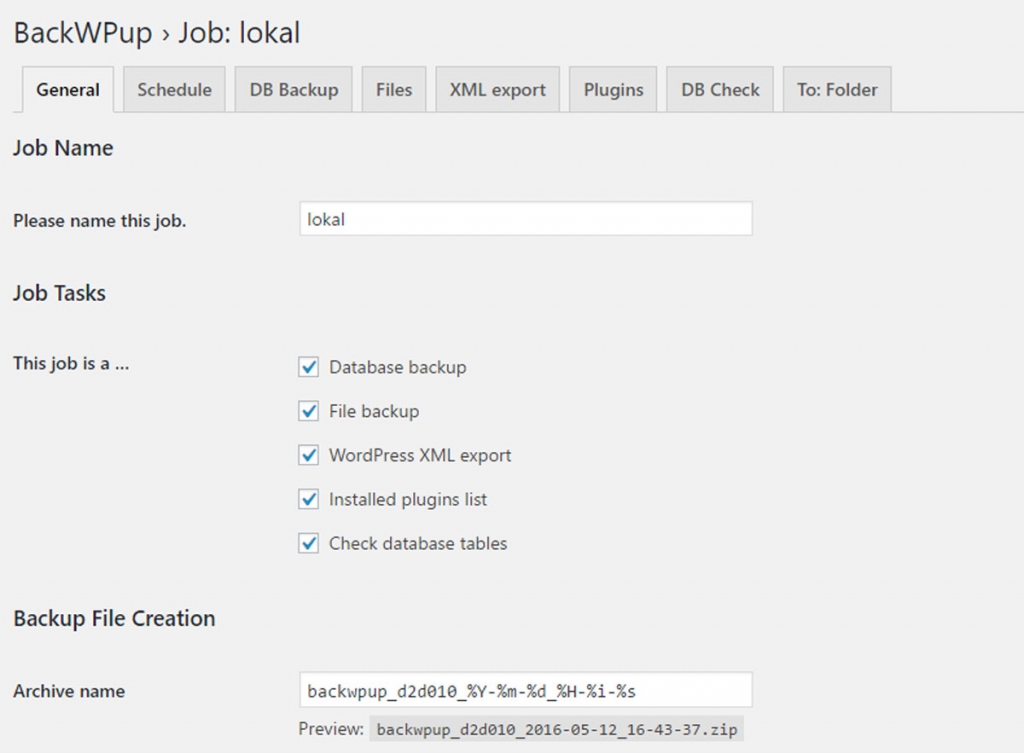
BackWPup provides enterprise-level backup features in its free version. The plugin supports multiple backup types including database, files, and XML exports. It sends backups to multiple destinations simultaneously and includes database optimization alongside backups.
Key Features
- Multiple backup types (database, files, XML exports)
- Free cloud storage to Dropbox, S3, and Azure
- Simultaneous backup to multiple destinations
- Database optimization runs with backups
- Flexible job scheduling for different backup types
Best For: Technical users who want granular control over backup types and destinations, with enterprise-grade features in a free plugin.
BackUpWordPress
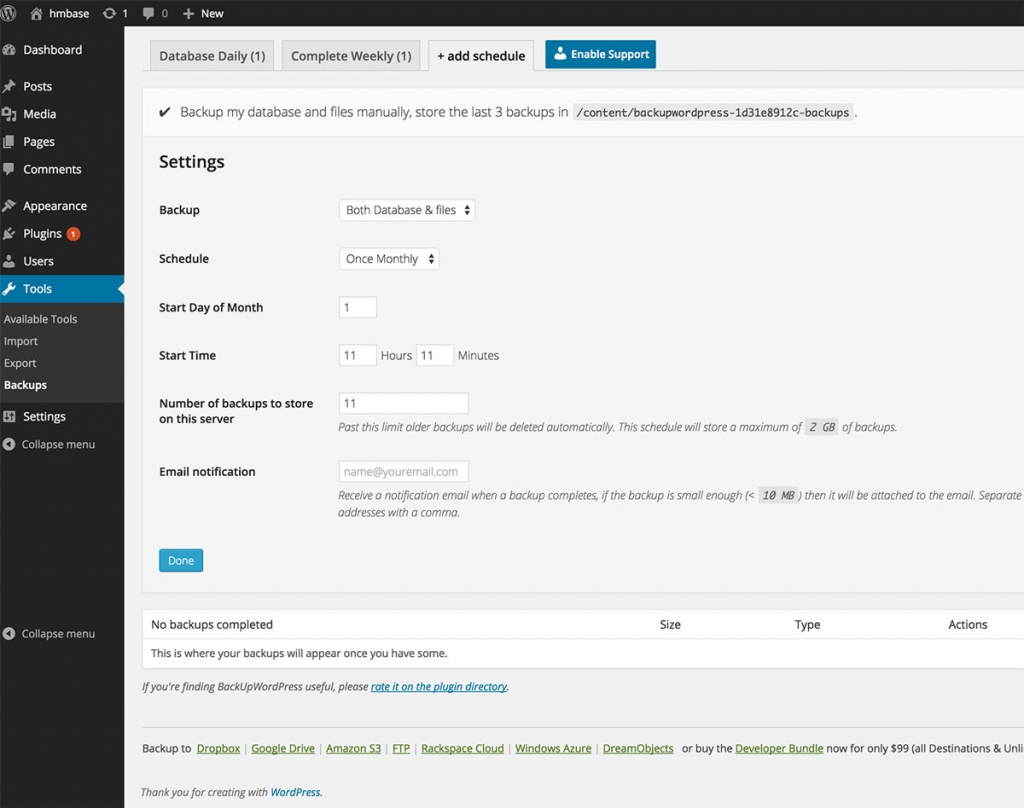
BackUpWordPress focuses on simplicity. The plugin works on low-resource hosting where other backup solutions struggle. Minimal configuration gets backups running without technical knowledge, and separate schedules for database and file backups add flexibility.
Key Features
- Works on limited and shared hosting environments
- Simple configuration with minimal setup
- Separate backup schedules for database and files
- Folder exclusion to reduce backup size
- Email backup delivery to your inbox
Best For: Users on budget hosting with limited server resources who need a lightweight, no-fuss backup solution.
Backup Guard
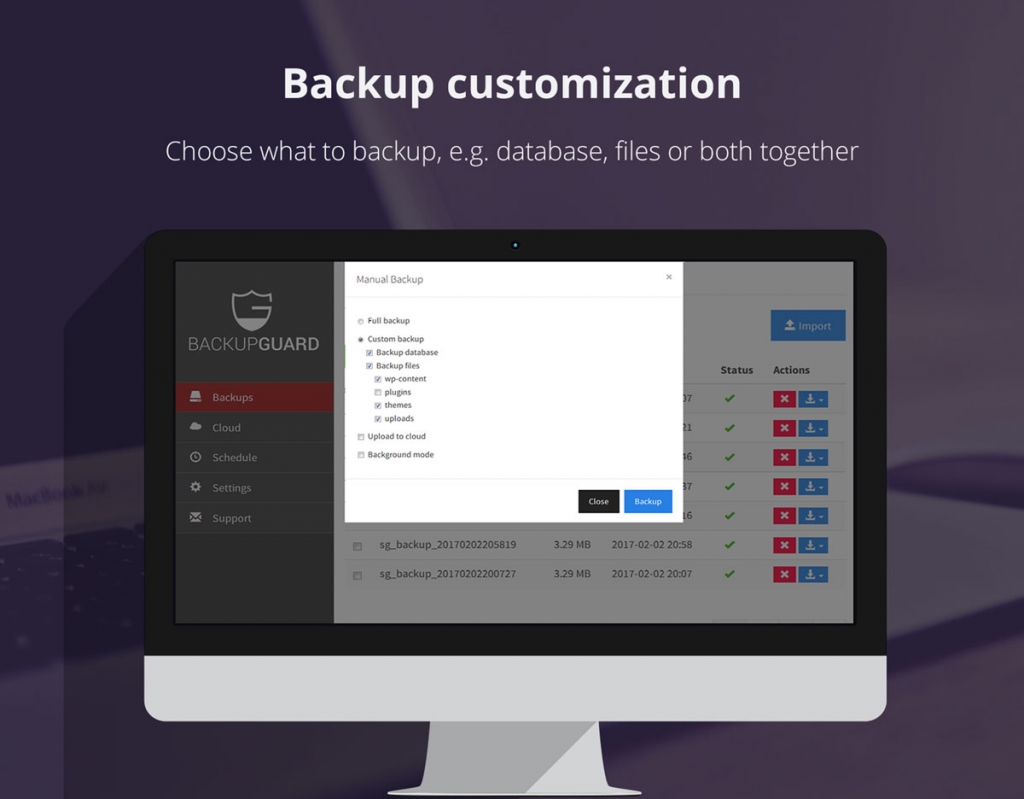
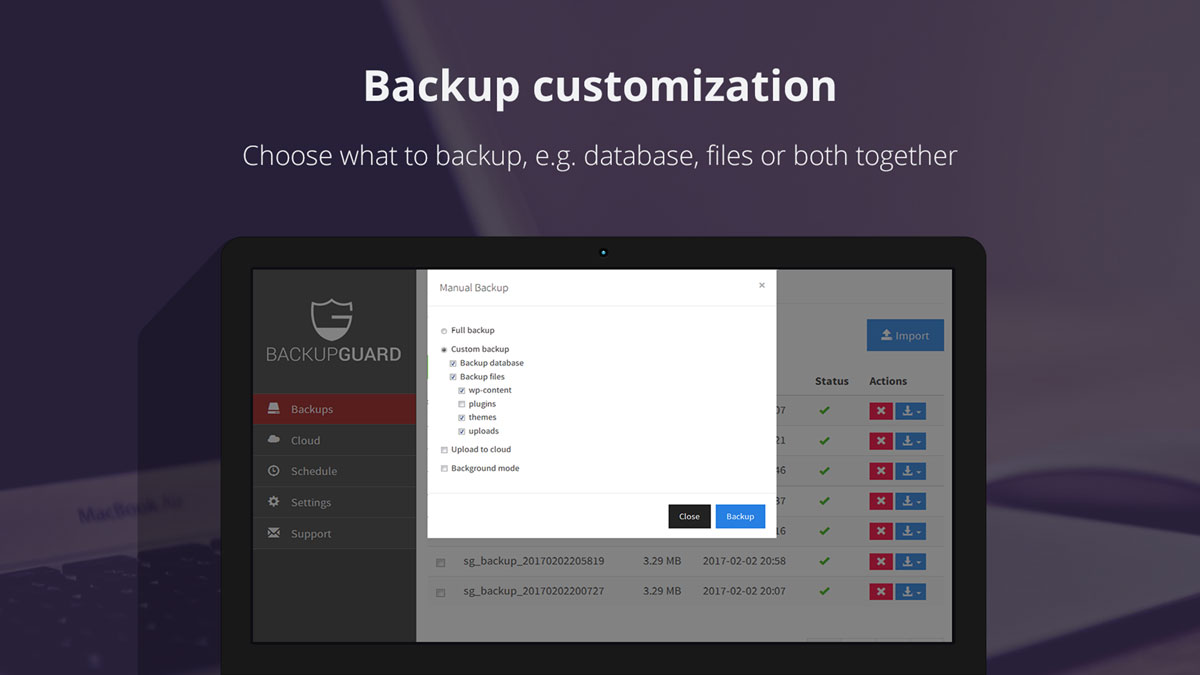
Backup Guard offers a balance of features and usability. The free version handles complete backups with Dropbox cloud storage. Custom backup paths let you protect specific folders, and background processing prevents timeout issues on large sites.
Key Features
- Free Dropbox integration for cloud backups
- Import/export for site migration
- Custom backup paths for selective backups
- Real-time progress display in dashboard
- Background processing to prevent timeouts
Best For: Users who want free Dropbox backup integration with selective folder backup capabilities.
Backup Best Practices
Installing a backup plugin isn’t enough. Follow these practices for reliable protection:
- Store backups off-site – Server failures destroy local backups too
- Test restoration – Verify backups work before you need them
- Schedule frequent backups – Match frequency to how often content changes
- Keep multiple copies – Store at least 30 days of backup history
- Include database and files – Partial backups leave gaps
- Monitor backup success – Enable email notifications
Choosing Your Backup Solution
Your choice depends on budget, technical skill, and site importance. Free plugins like UpdraftPlus and BackWPup work well for most sites. Premium services like BlogVault and Jetpack Backup offer peace of mind with real-time protection.
E-commerce sites and businesses should invest in premium backups. The cost of lost sales and customer data far exceeds subscription fees. Test your chosen solution by restoring to a staging site before you need it for real.
Frequently Asked Questions
- How often should I back up my WordPress site?Backup frequency depends on how often your site changes. Daily backups work for most blogs. E-commerce sites with constant orders need real-time or hourly backups. Static sites that rarely change can use weekly backups. Match your schedule to potential data loss impact.
- Where should I store WordPress backups?Store backups off your web server. Cloud services like Dropbox, Google Drive, or Amazon S3 work well. Keep at least one copy separate from your hosting account. If your host experiences problems, you still have access to your backups.
- Can I use my host’s backup instead of a plugin?Host backups provide basic protection but have limitations. You may not control backup frequency or retention periods. Restoration might require support tickets and waiting. A plugin gives you direct control and faster recovery. Use both for layered protection.
- Do backups slow down my WordPress site?Backups can impact performance while running. Schedule backups during low-traffic periods, typically late night or early morning. SaaS solutions like BlogVault run backups on their servers, avoiding impact on your site. Most plugins complete backups quickly on modern hosting.
- What’s the difference between incremental and full backups?Full backups copy everything each time. Incremental backups copy only changes since the last backup. Incremental backups use less storage and run faster. However, restoration requires the full backup plus all incremental pieces. Most premium plugins offer incremental options.
- How do I restore a WordPress backup?Most plugins include restoration features in the WordPress dashboard. Upload your backup file and click restore. For complete site failures, you may need to install WordPress first, then restore using the plugin’s standalone tool. Test restoration on a staging site before you need it.


Get Access to All 28 WordPress Themes
Build unlimited websites with one subscription.