

All Staff
The staff custom post type lets you showcase your management, staff and volunteers. It features fields such as position, contact detail fields such as phone number, email address and website URL and social network links.
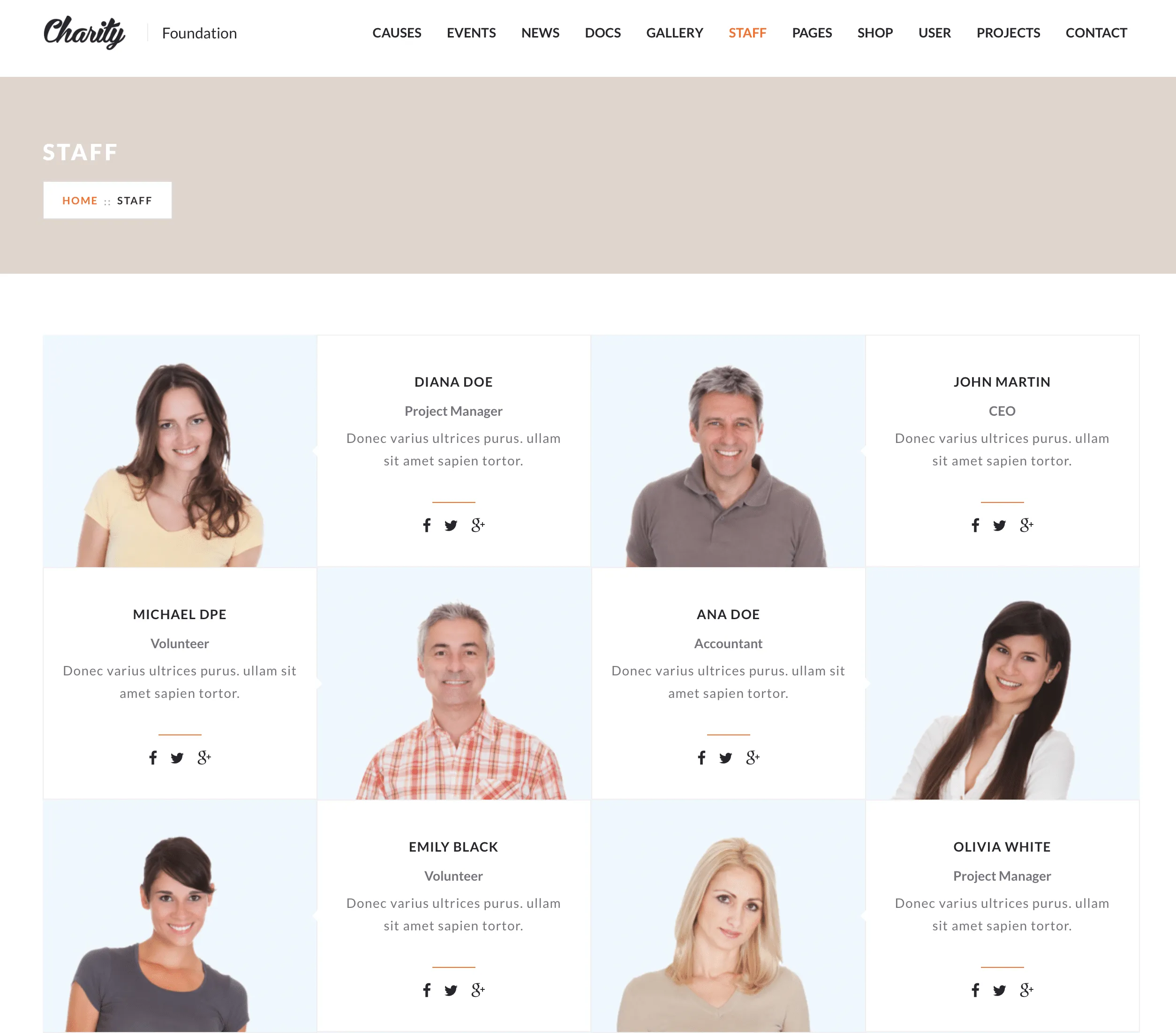
The Staff/Team Grid template.
The All Staff Screen
Section titled “The All Staff Screen”The All Staff screen inherits most of the features of the standard posts screen. You can edit, delete or view individual staff using the links under the staff titles. You can select multiple staff for deletion and editing. Bulk edit changes certain fields for a group of staff at once. A handy in-line edit tool, called quick edit, lets you update many fields for an individual staff member. Various search and filtering options let you find the staff member you want to edit or delete.
The Table of Staff
Section titled “The Table of Staff”A table lists all of your staff. By default, staff are listed with the newest staff member first, but they can also be sorted by title.
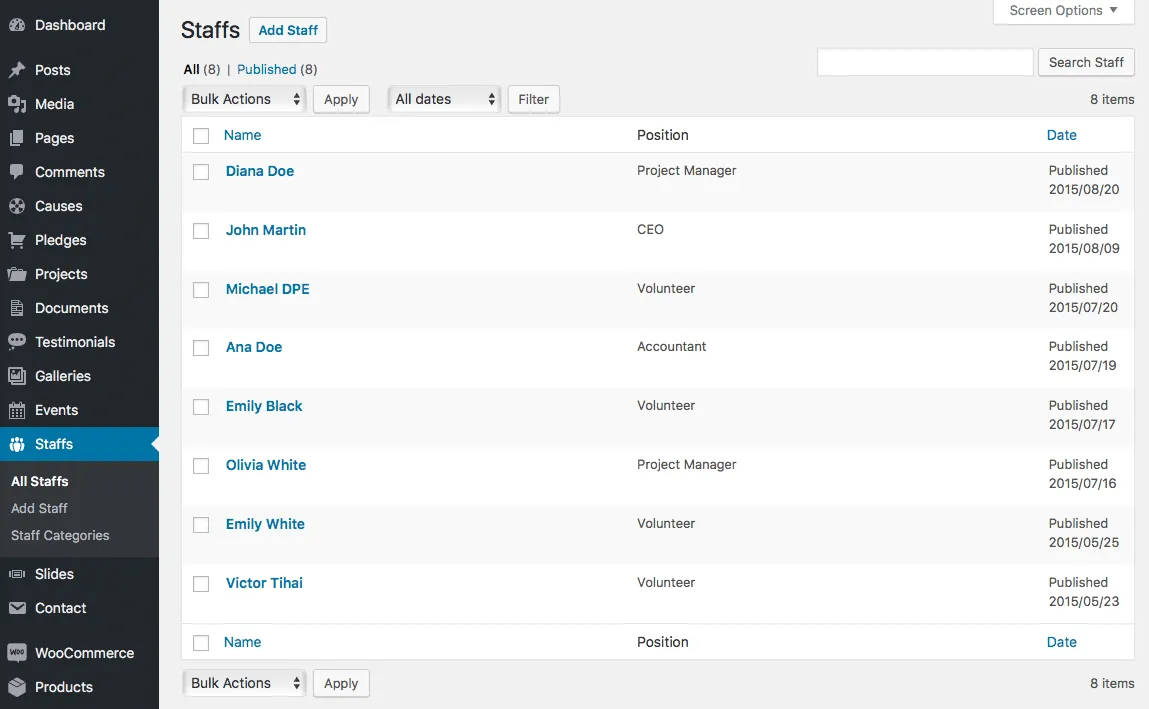
The Staff Screen
- [ ]: This checkbox, when checked, selects that particular staff member to be processed by a bulk action, such as edit or delete.
- Name: This is the staff member’s name displayed as a link. Click the title link to edit this staff member. Next to the title, if a staff member is of a Draft, Private, Pending, or Password Protected nature, bold text will display showing that. Hovering over the Title displays the unique identifier (ID) of a post.
- Position: Displays the position of the staff member in your organization.
- Date: The date column for each staff shows the date Published for published staff or the date Last Modified for other staff. If the staff member is a future staff, the scheduled date for publishing is displayed.