

Add Event
You can add new events through Events → Add New Event in the WordPress Administration Panel.
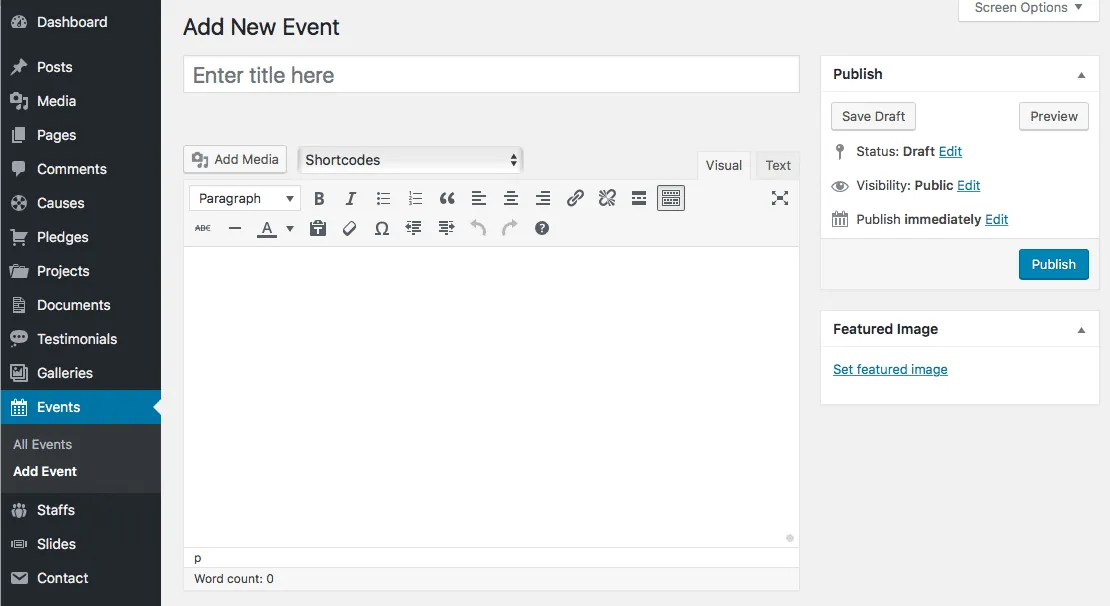
The Events → Add New Event screen
Events contain most of the same options as standard posts. You can read about these in the Add New Post chapter. Additionally, they contain post options specific to events.
Event Options
Section titled “Event Options”Event Options are found below the editor on the Edit Event page. If the Event Options are not visible, make sure they are checked inside the Screen Options area at the top.
If you are adding a new event, make sure you have saved the post before editing event options. Otherwise, the event options will not be visible.
Sidebar Position
Section titled “Sidebar Position”Set to Right to display the sidebar on the right. Choose “No Sidebar” for Full-width page.
Select Sidebar
Section titled “Select Sidebar”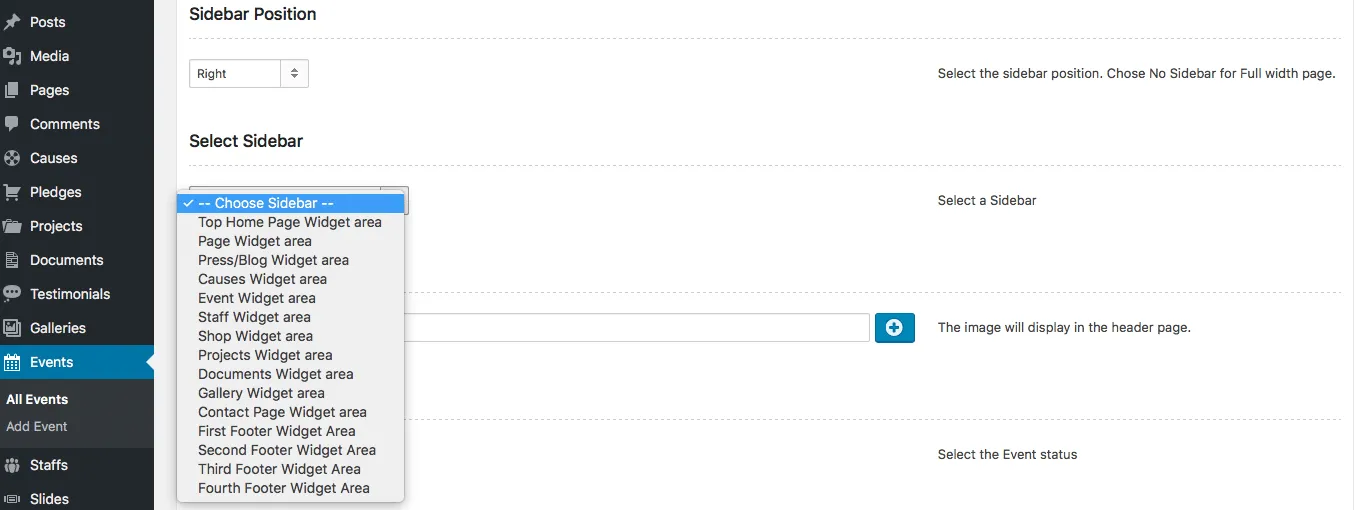
Sidebar position
Header image
Section titled “Header image”The header image is displayed behind the title at the top of the single event page in the front-end. Select a wide but short image, around 1680px x 275px. Click the + button to upload an image.
If you don’t add a header image, the default background color will be displayed.
Event Status
Section titled “Event Status”Select the Event status (Open, Ongoing or Completed).
Date and time
Section titled “Date and time”This field denotes the date and time of this event.
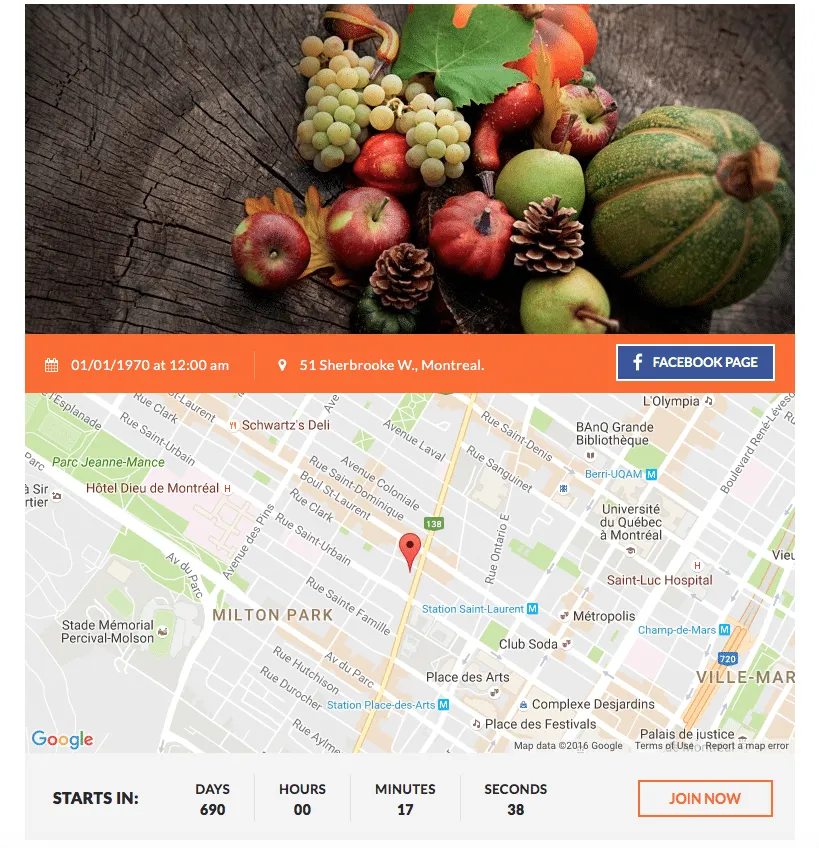
Example of an event
Facebook URL
Section titled “Facebook URL”Enter the URL for the Facebook page of this event.
Eventbrite URL
Section titled “Eventbrite URL”Enter the URL for the Eventbrite page of this event.
Custom URL
Section titled “Custom URL”Add any other URL you want this event to link to, such as a ticket booking page through a provider other than Facebook or Eventbrite.
Custom URL label
Section titled “Custom URL label”The label for the above button.
Event location
Section titled “Event location”A user-friendly name of the location or building where the event will take place.
Event address
Section titled “Event address”User-friendly address of the event which will be displayed above the map in the information panel. Consider including some directions or a description of your event location to make it easier to find.
Event Google Maps location
Section titled “Event Google Maps location”Maps are displayed using Google Maps, so check your location is displayed correctly there before pasting it in here. This field can accept coordinates as well as addresses.
Remember to include your Google Maps API key on the Theme Options page for maps to be displayed correctly.
Pin map icon
Section titled “Pin map icon”The pin to be placed on the map in the location you set in Event Google Maps location. The recommended size for this is 64px x 64px, but any other size will also be handled correctly.
Share buttons
Section titled “Share buttons”Set to On to display the sharing buttons for Twitter, Facebook, Pinterest and Google+.