

Add Document
You can add new documents through Documents → Add Document in the WordPress Administration Panel.
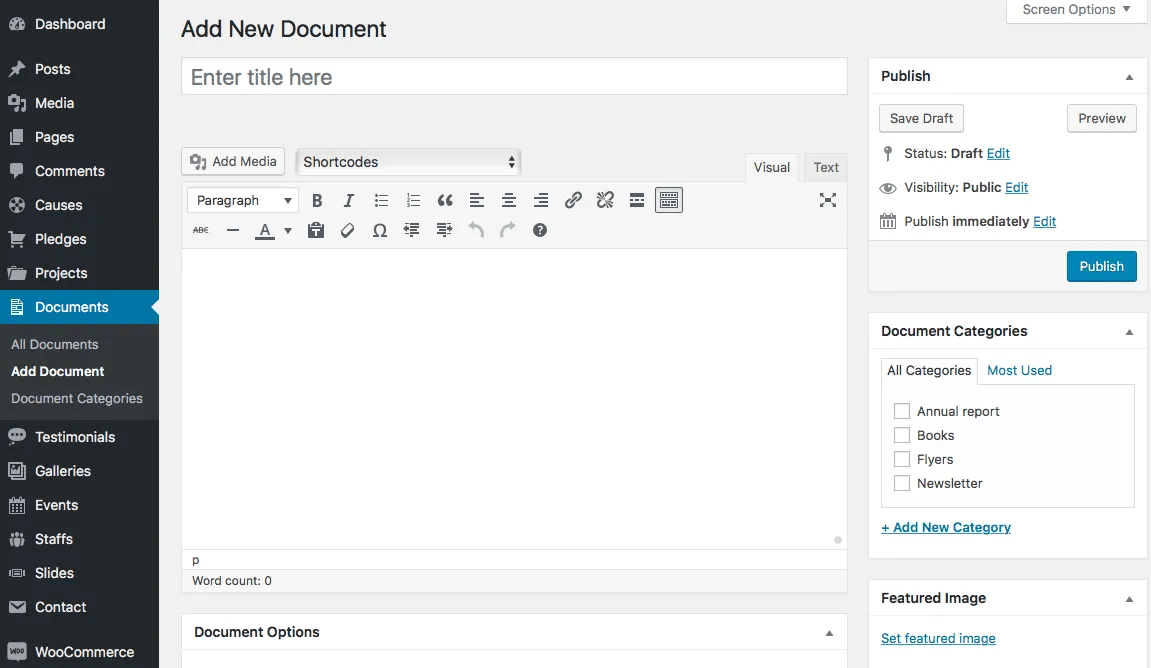
Add new document
Documents contain most of the same options as standard posts. You can read about these in the Add New Post chapter. Additionally, they contain post options specific to documents.
Document Options
Section titled “Document Options”Document Options are found below the editor on the Edit Document page. If the Document Options are not visible, make sure they are checked inside the Screen Options area at the top.
If you are adding a new document, make sure you have saved the post before editing document options. Otherwise, the document options will not be visible.
Sidebar Position
Section titled “Sidebar Position”Select the sidebar position. Choose No Sidebar for Full- width page.
Select Sidebar
Section titled “Select Sidebar”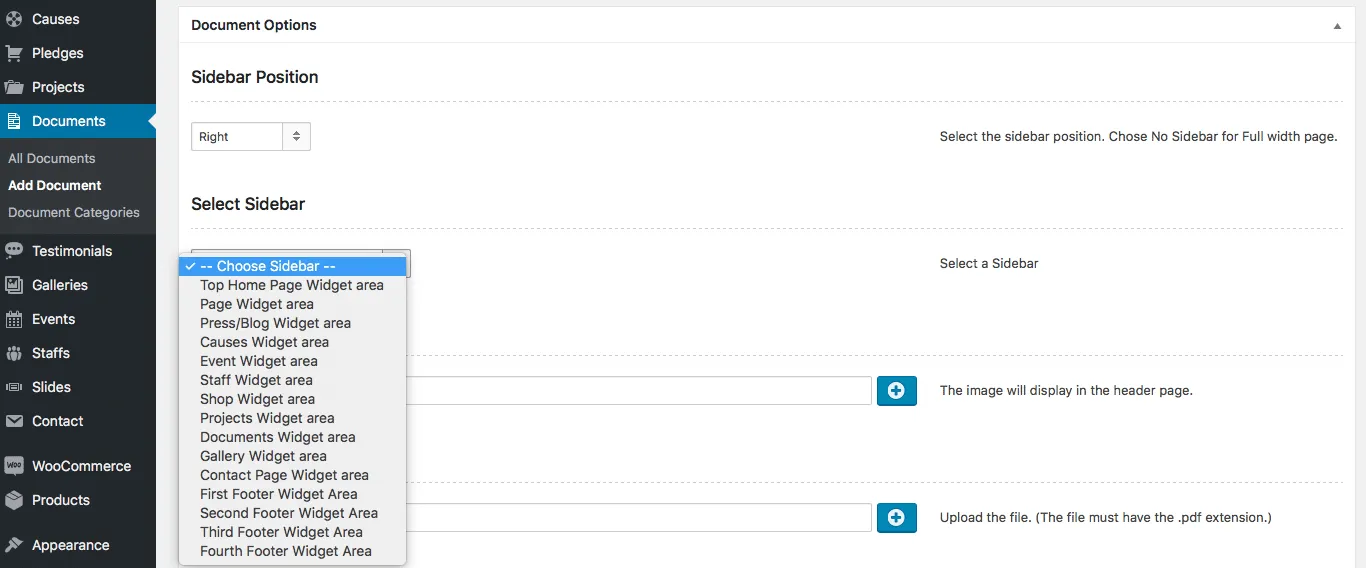
Choose sidebar position
Header image
Section titled “Header image”The header image is displayed behind the title at the top of the single document page in the front-end. Select a wide but short image, around 1680px x 275px. Click the + button to upload an image.
If you don’t add a header image, the default background color will be displayed.
Upload File
Section titled “Upload File”This is where you upload the document. It must have a .pdf file extension. Click the + button to add a new file, the – button to remove the file, or the + button, while an existing file is present, to replace it.
File size
Section titled “File size”Add the size of this file, in any unit, such as KB or MB, for example 1.45 MB.
Number of Pages
Section titled “Number of Pages”Add documents ( e.g. 220 Pages)