

Add New Project
You can add new projects through Projects → Add New Project in the WordPress Administration Panel.
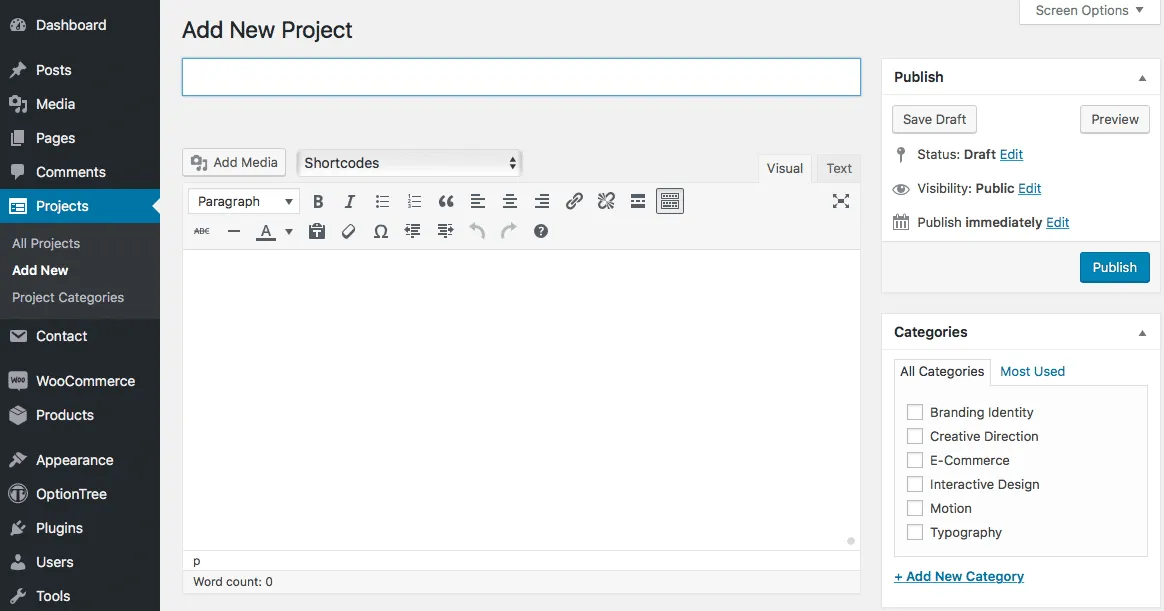
The Projects → Add New Project screen
Projects contain most of the same options as standard posts. You can read about these in the Add New Post chapter. Additionally, they contain post options specific to projects.
Project Options
Section titled “Project Options”Project Options are found below the editor on the Edit Project page. If the Project Options are not visible, make sure they are checked inside the Screen Options area at the top.
If you are adding a new project, make sure you have saved the post before editing project options. Otherwise, the project options will not be visible.
Header style
Section titled “Header style”Choose the header style for your project.
Display hero area
Section titled “Display hero area”Display a large, attractive area at the top of the page, featuring a background image, project title, client details, and project categories.
Display title
Section titled “Display title”Display the project’s title and category over the Hero Image.

Display title of the project
Display categories
Section titled “Display categories”Display project categories in the hero area.
Project subtitle
Section titled “Project subtitle”Write project’s subtitle.
Hero background type
Section titled “Hero background type”Choose an image or video for your project.
Hero image
Section titled “Hero image”Set a unique background image for this project. This field is optional, if you don’t upload a Hero Image, the post’s Featured Image will be used.
Custom URL
Section titled “Custom URL”Define a custom URL for this project.
Custom URL target
Section titled “Custom URL target”This option defines whether the link to this project will open in a new or existing tab or window.