

Customizer
In order to access the Customizer go to Appearance → Customize from the WordPress Administration Panel.
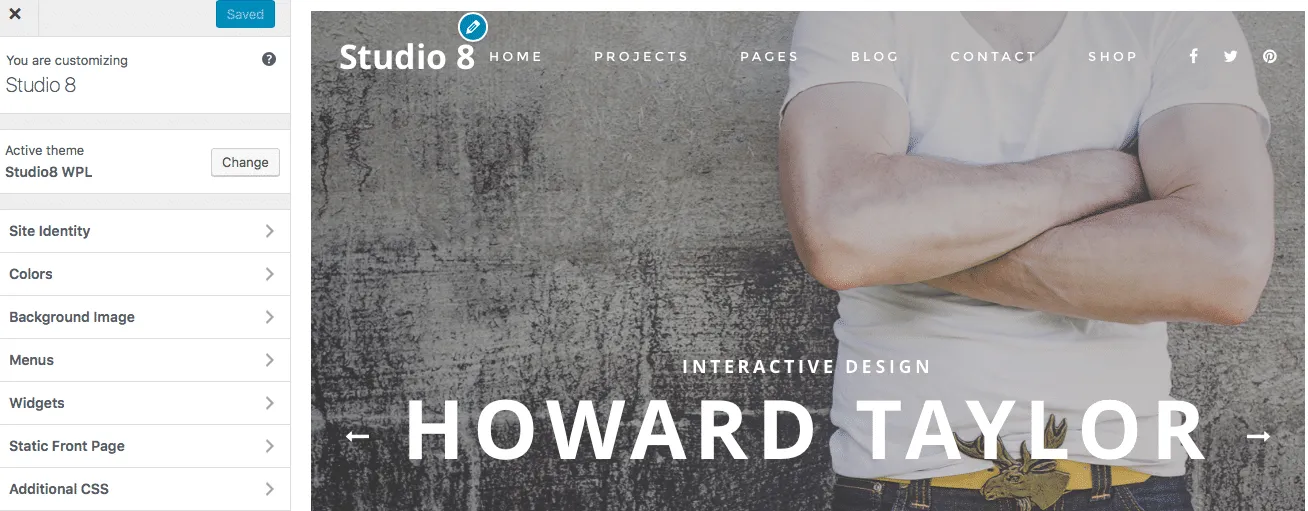
The WordPress Customizer in action
Site Identity
Section titled “Site Identity”- Site Title: This is the website name, it will appear if a logo is not available.
You can add a logo instead of the Site Title in Appearance → Theme Options. - Tagline: This is a short description of your site, which will appear under the logo or site title.
- Site Icon: The site icon is also known as a favicon. It will appear in the address bar, bookmarks bar and will be used by mobile browsers.
Colors
Section titled “Colors”This section allows you to change the website colors.
- Background Color: The color of the site background.
- Lead Color: The color of menu, slider text and footer bg.
- Primary Accent Color: The primary color for the theme, used in places like buttons and the header background.
- Text Color: Text color.
- WooCommerce Price Color: If WooCommerce is enabled, this additional color will be used as the color prices are displayed in across the site.
Header Image
Section titled “Header Image”The header image displayed below the menu, on the home page template only.
If you want to use the slider like on our demo site, please keep this field blank and go to Slides from the WordPress Administration Panel to add or edit the slider content.
Background Image
Section titled “Background Image”Adds a background image to your website.
Use this section to manage navigation menus, such as the main theme navigation in the header. For more information regarding theme menus, please read the Menu chapter.
Widgets
Section titled “Widgets”Use this section to manage all widgets areas and to add, remove or edit widgets. For more info regarding the widgets please read the Widgets chapter.
Static Front Page
Section titled “Static Front Page”Use this section to select a page to use as the home page template. By default, WordPress displays your latest posts on the home page, but this can be changed to display customizable widget areas. The widget areas can contain your latest posts, past and upcoming events, ministries, causes, sermons, projects, sponsors, or any other widgets available in WordPress.
To set up a page to use as a home page, go to Pages → Add New from the WordPress Administration Panel. You can name this page whatever you like, and any content you enter here will be displayed alongside the widget areas. However, it’s important you set the Template (under Page Attributes) to Page with slider for this to work correctly.
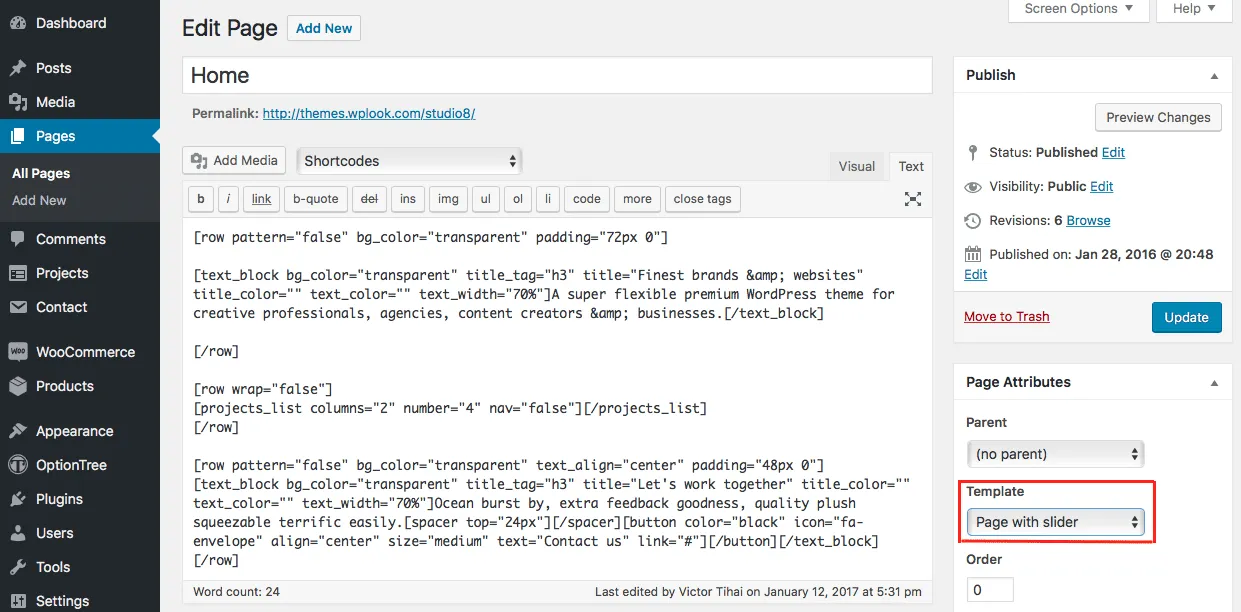
The page editor displaying the page with slider option
If the Page Attributes panel is not visible, go to Screen Options at the top of the screen, and make sure Page Attributes is enabled under Boxes.
Using the same method, add another page for your posts, but this time do not set the template to Page with slider.
Next, return to the Customizer → Static Front Page. Set the Front page to the first page you created, and the Posts page to the latter page you created.
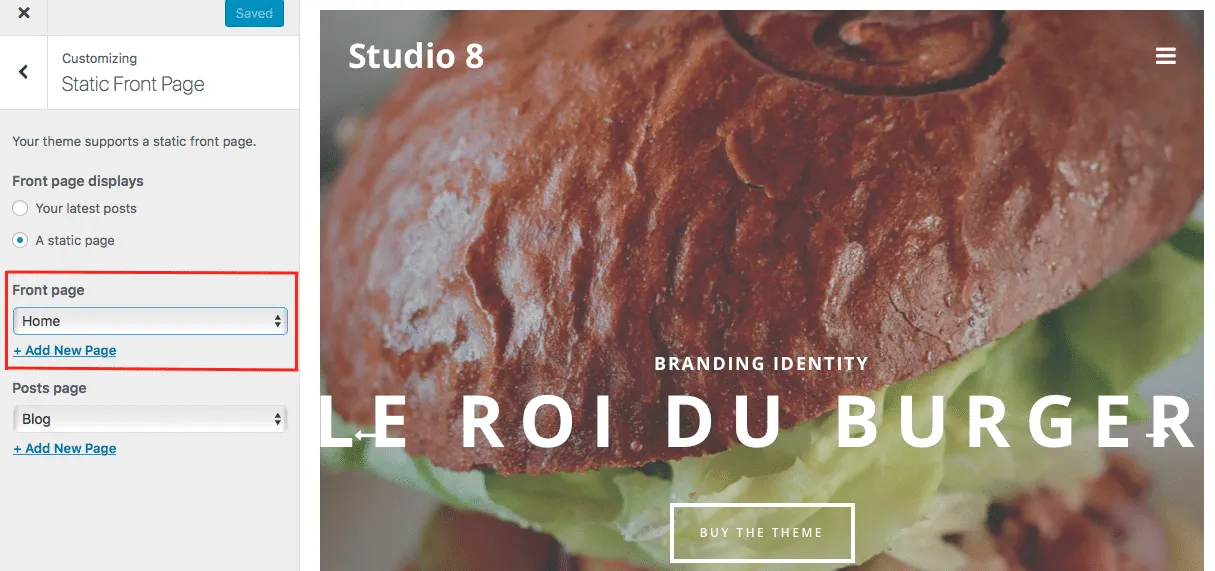
The Static Front Page settings in the Customizer, highlighting where the Front page is set.