

Tickets
If you want to sell event tickets on your website and deliver them to your buyers digitally, Event theme is exactly what you need.
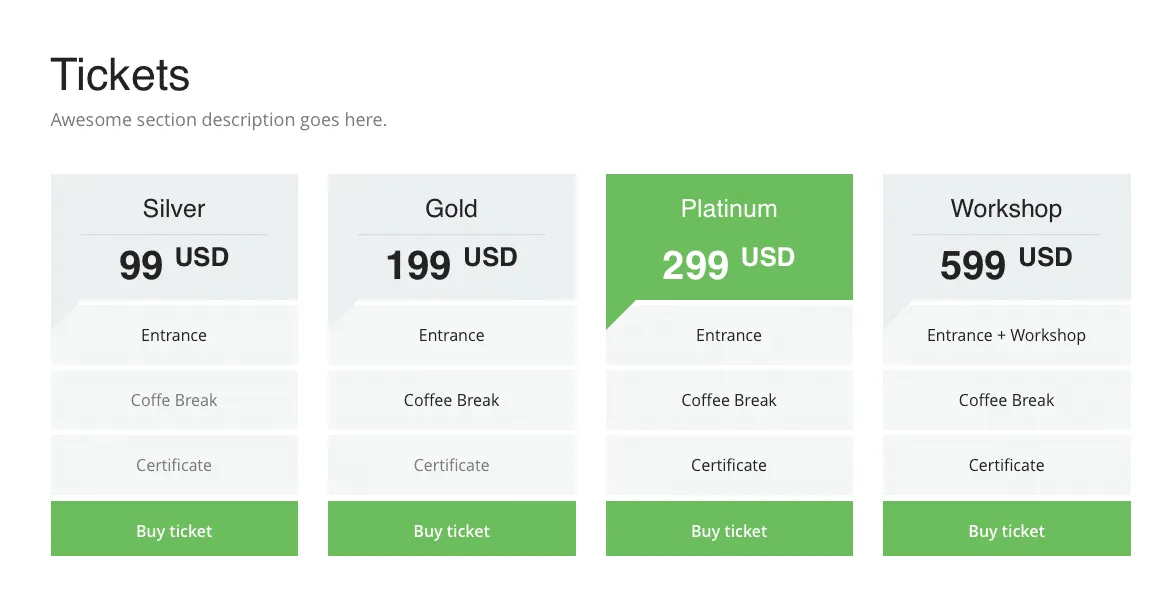
Ticket page
The All Tickets Screen
Section titled “The All Tickets Screen”The All Tickets screen inherits most of the features of the standard posts screen. You can edit, delete or view individual ticket using the links under the ticket titles. You can select multiple tickets for deletion and editing. Bulk edit changes certain fields for a group of tickets at once. Quick edit updates many fields of a single ticket without opening it. Search and filters help you find the ticket you want to edit or delete.
The Table of Ticket
Section titled “The Table of Ticket”A table lists all of your tickets. By default, the tickets are listed with the newest ticket first, but they can also be sorted by title.
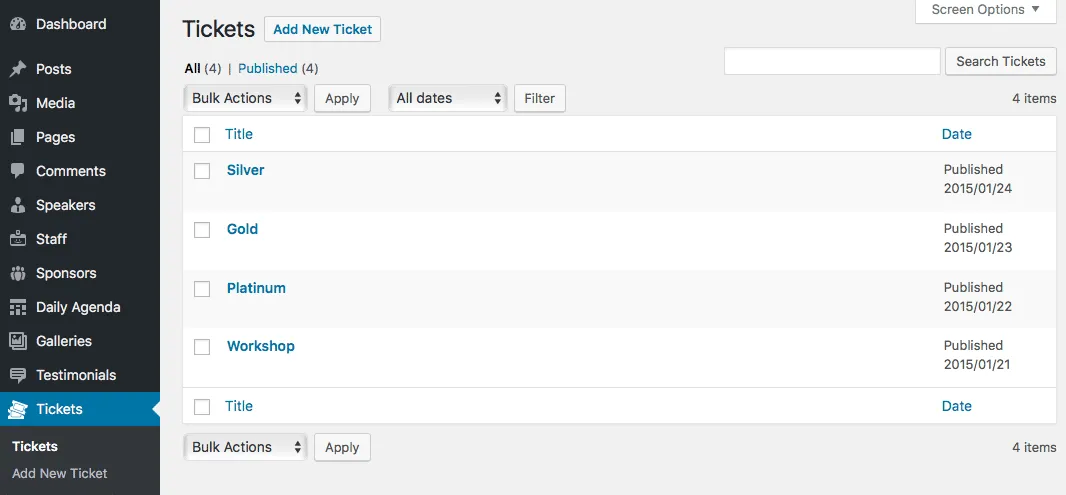
Ticket screen table
- [ ]: This checkbox, when checked, selects that particular ticket to be processed by a bulk action, such as edit or delete.
- Title: This is the ticket title displayed as a link. Click the title link to edit this ticket. Next to the title, if a ticket is of a Draft, Private, Pending, or Password Protected nature, bold text will display showing that. Hovering over the Title displays the unique identifier (ID) of a post.
- Date: The ticket column for each ticket shows the date Published for published tickets or the date Last Modified for other tickets. If the ticket is a future ticket, the scheduled date for publishing is displayed.
Still stuck?Our support team can help with this theme. Include a link to this page in your ticket.
Submit a ticket