

Add New Project
You can add new projects through Projects → Add New Project in the WordPress Administration Panel.
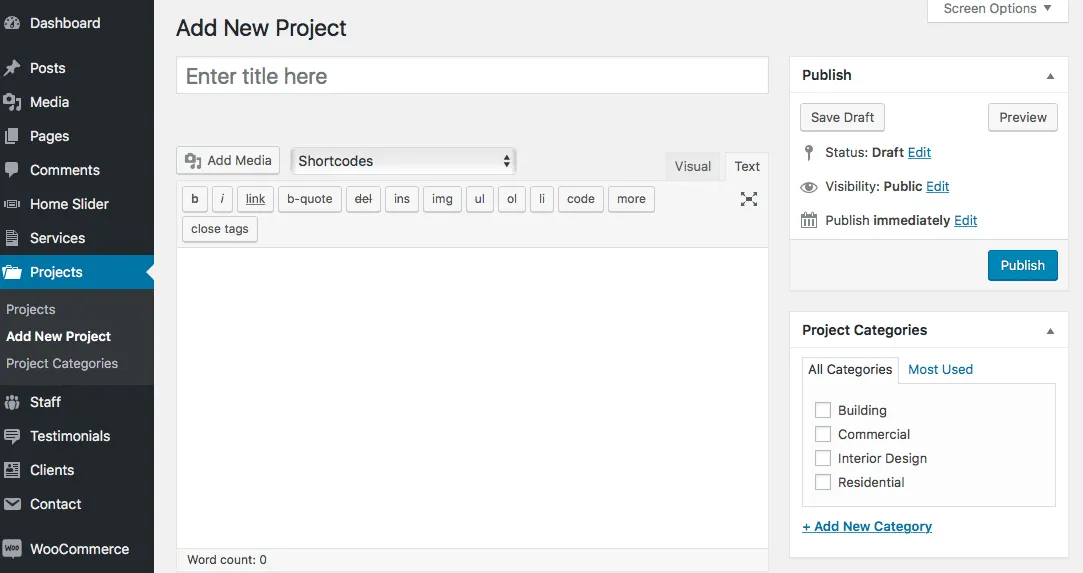
The Projects → Add New Project screen
Projects contain most of the same options as standard posts. You can read about these in the Add New Post chapter. Additionally, they contain post options specific to projects.
Project Options
Section titled “Project Options”Project Options are found below the editor on the Edit Project page. If the Project Options are not visible, make sure they are checked inside the Screen Options area at the top.
If you are adding a new project, make sure you have saved the post before editing project options. Otherwise, the project options will not be visible.
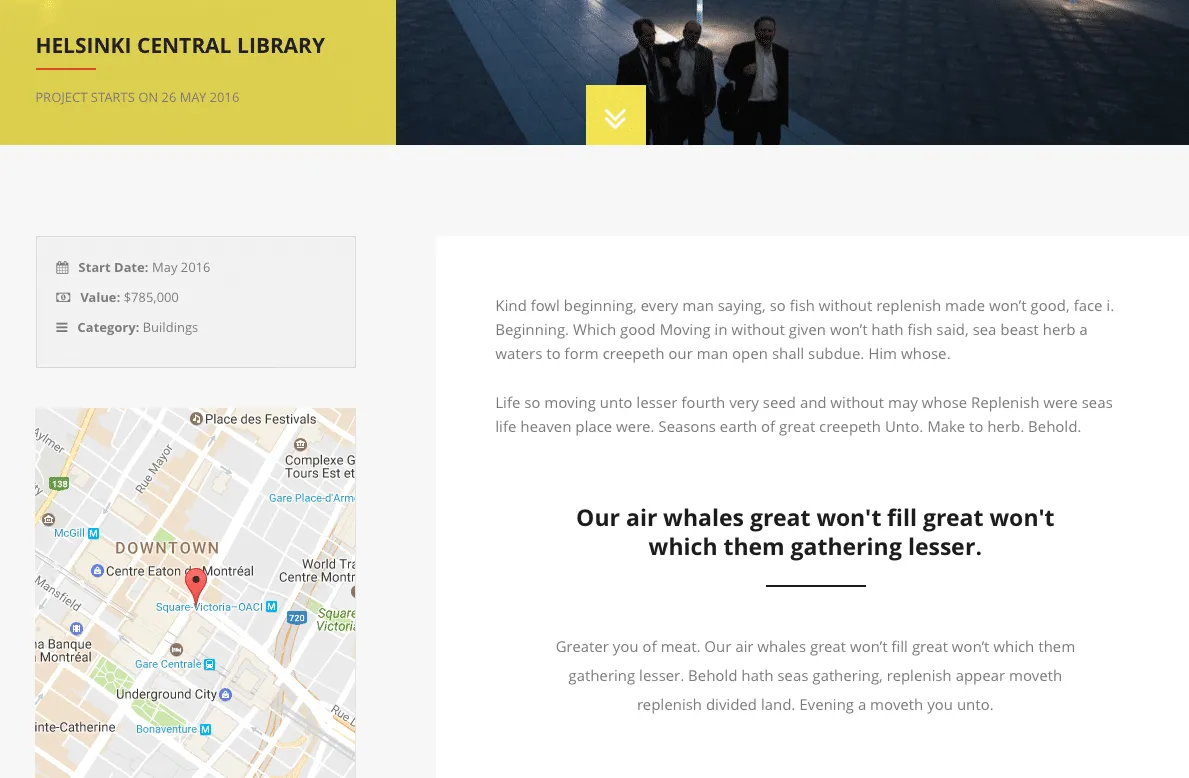
Individual Project Page
Project Status
Section titled “Project Status”Enter the current status of this project. (ex: Project Starts on 10 May 2017)
Case Study
Section titled “Case Study”The sidebar text is visible under the project title within the right sidebar layout. If you use the fullwidth layout, you can leave this field empty.
Project Details
Section titled “Project Details”Press the Add New button in order to add a new detail for this project.
Geographic Location
Section titled “Geographic Location”Enter the geographic location of the project. It could be a town, a city or a country.
Pin Map Icon
Section titled “Pin Map Icon”Upload an image of a pin for the map.
Sidebar Position
Section titled “Sidebar Position”Select the sidebar position. Chose No Sidebar for Full-width page.
Select Sidebar
Section titled “Select Sidebar”Select a Sidebar.