



Over 50,000 websites get hacked every day. Yours could be one of them without you knowing. Security scanners catch problems early, before hackers cause real damage.
You don’t need to spend money on security scanning. These free tools check your WordPress site for malware, vulnerabilities, and blacklist status. Run them regularly to stay protected.
What Security Scanners Detect
Online security scanners look for problems including:
- Malware and viruses
- Sensitive data exposure
- Unprotected APIs
- Broken authentication
- Cross-site scripting (XSS)
- Unauthorized ads or redirects
- Infected plugins and themes
- Insecure server configuration
- Blacklist status on Google and other services
These tools give you visibility into issues you can’t see just by browsing your site. Problems often hide in code or configurations.
1. Quttera

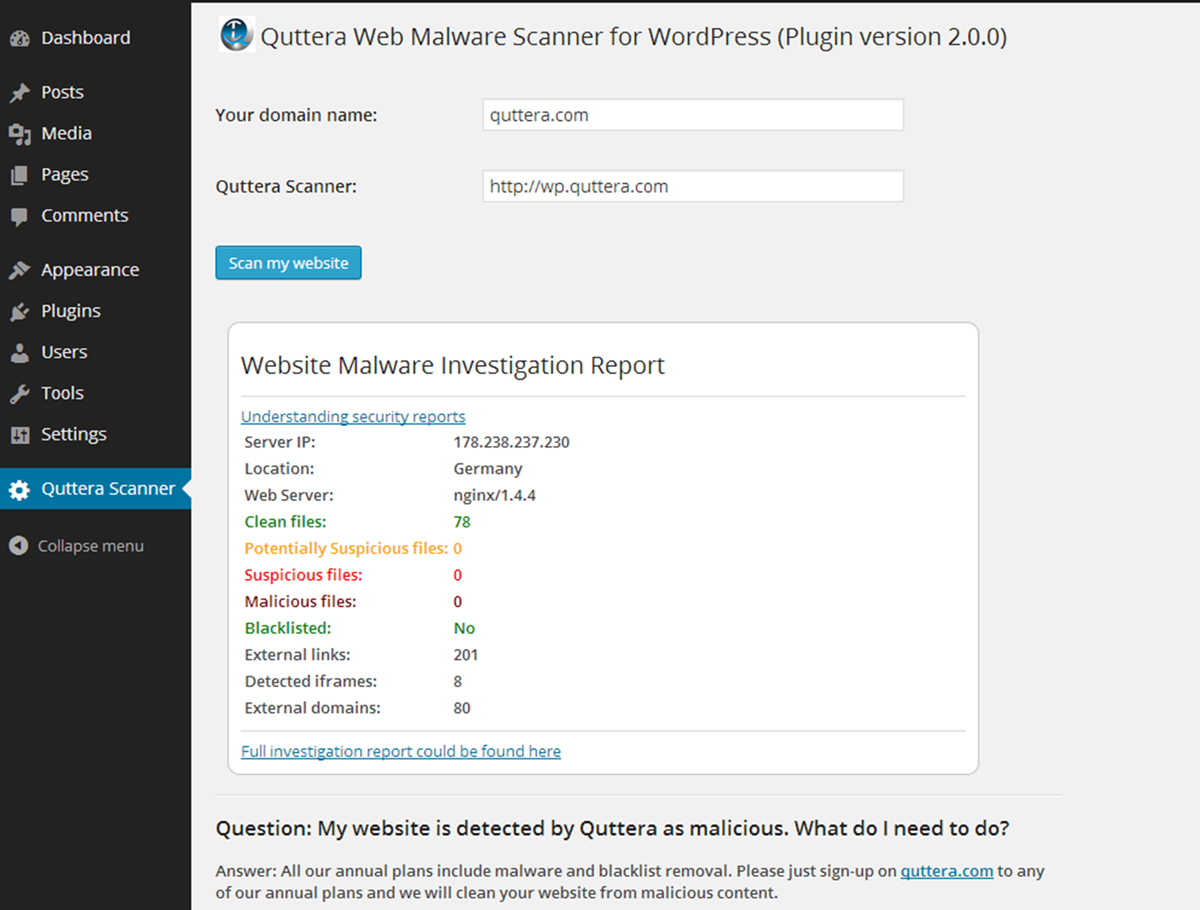
Quttera is one of the most popular free security scanners. It protects websites in over 32 countries. The tool checks for malware, suspicious files, and blacklist status.
The scanner looks for:
- Auto-generated malicious files
- Suspicious iFrames
- External malicious links
- Trojans and spyware
- Google blacklist status
Using Quttera is simple. Enter your URL and click scan. No signup required. You get instant results with a comprehensive malware report.
Scan with Quttera2. SiteGuarding
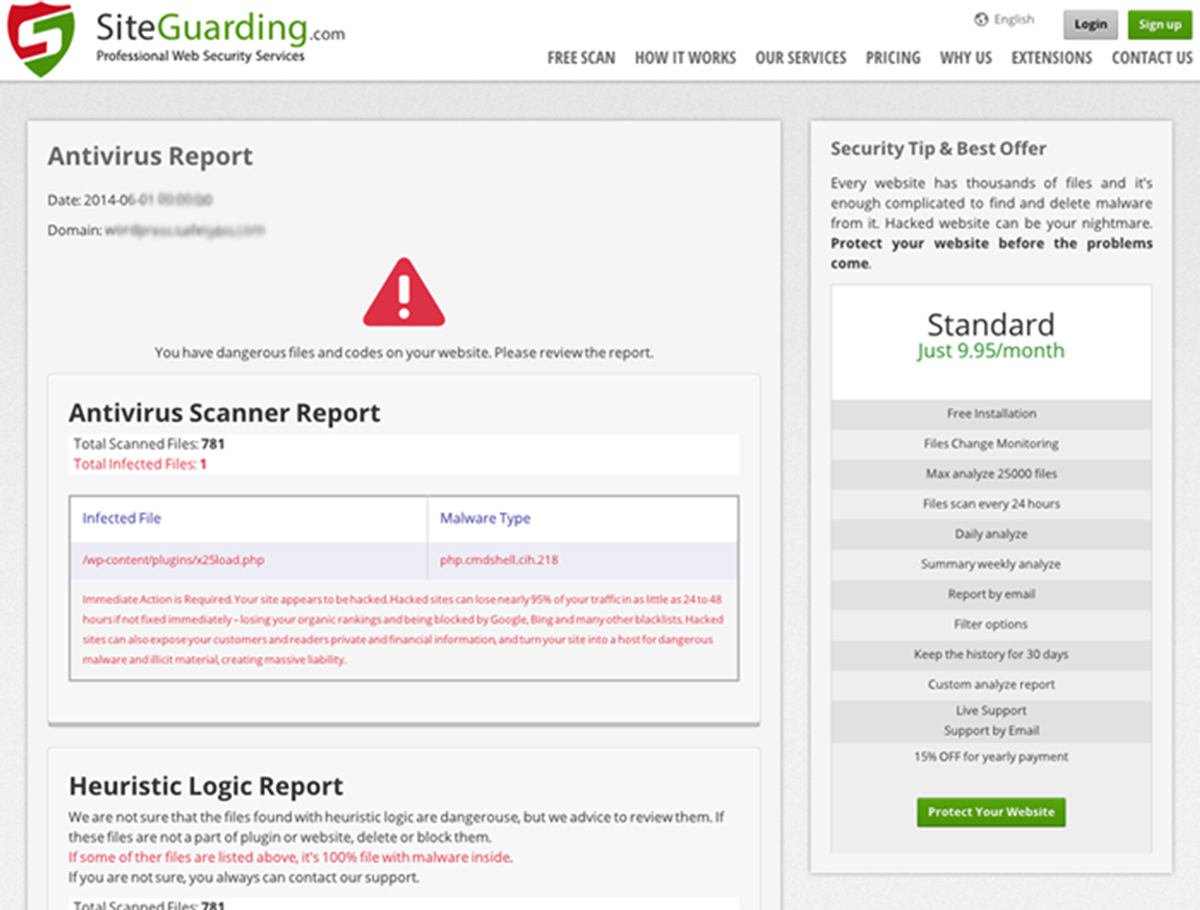
SiteGuarding provides free security audits. The tool crawls your site and scans for defacements, cross-site scripting, malware, and more.
Features include:
- Malware detection
- Hidden iFrame scanning
- IP cloaking detection
- Website firewall analysis
- Blacklist checking
- Injected spam detection
The easy interface makes scanning simple. SiteGuarding updates their database daily to catch new threats. Their 24/7 support helps with security questions.
Scan with SiteGuarding3. WPScans
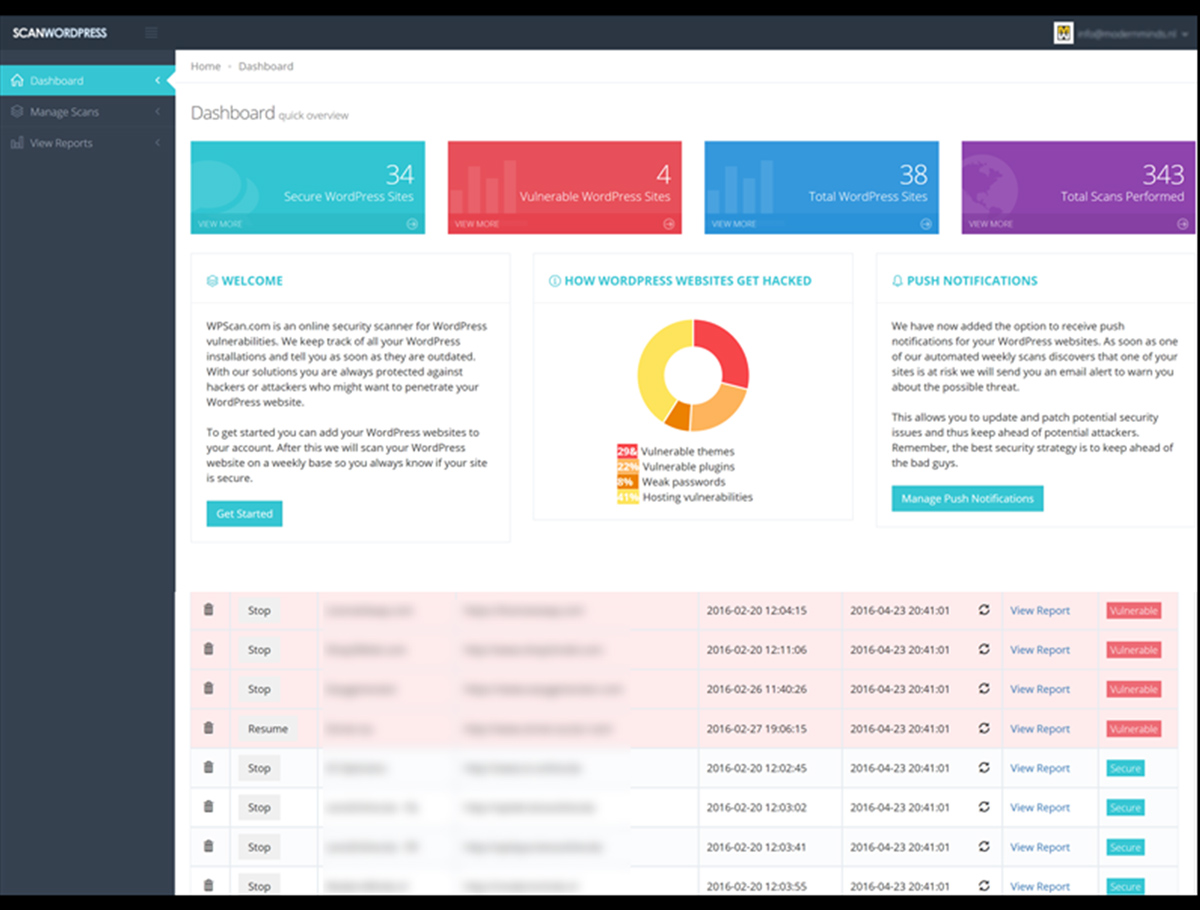
WPScans focuses specifically on WordPress vulnerabilities. The tool checks your site against a database of 4,000+ known bugs and security issues.
The scanner identifies:
- Known WordPress vulnerabilities
- Insecure plugin versions
- Common installation mistakes
- Outdated components
Instant scans provide quick security reports. You can also schedule daily or monthly automatic scans. Push notifications alert you when WordPress needs updating.
Scan with WPScans4. WordPress Security Scan
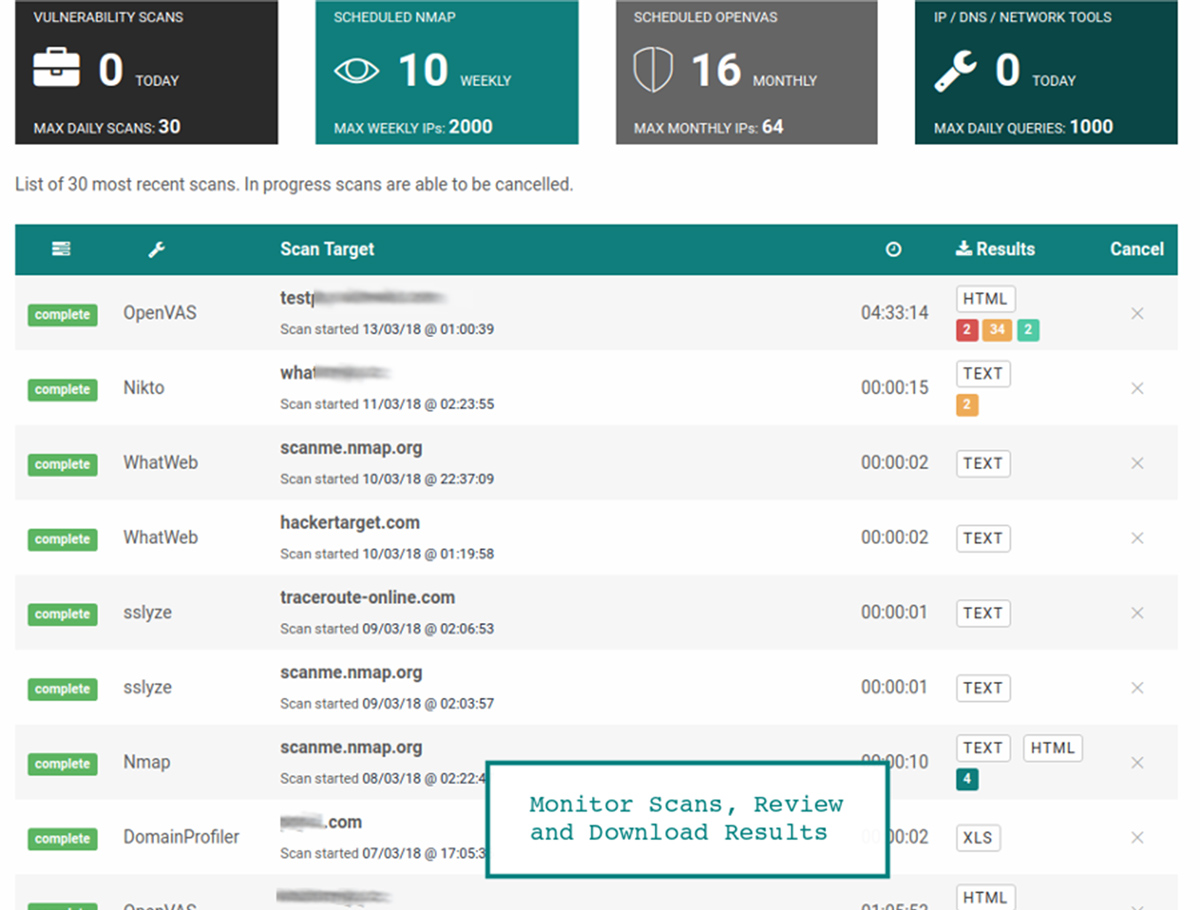
This tool provides a detailed overview of your WordPress security status. It downloads pages and analyzes the raw HTML for vulnerabilities.
The scan checks:
- Application security
- Web server configuration
- Plugin vulnerabilities
- Hosting environment
- Directory indexing
- User enumeration risks
- JavaScript and iFrame analysis
You also get IP information, geolocation data, and Google Safe Browsing reputation checks. The detailed results help you understand specific attack risks.
Scan Your WordPress Site5. Sucuri SiteCheck

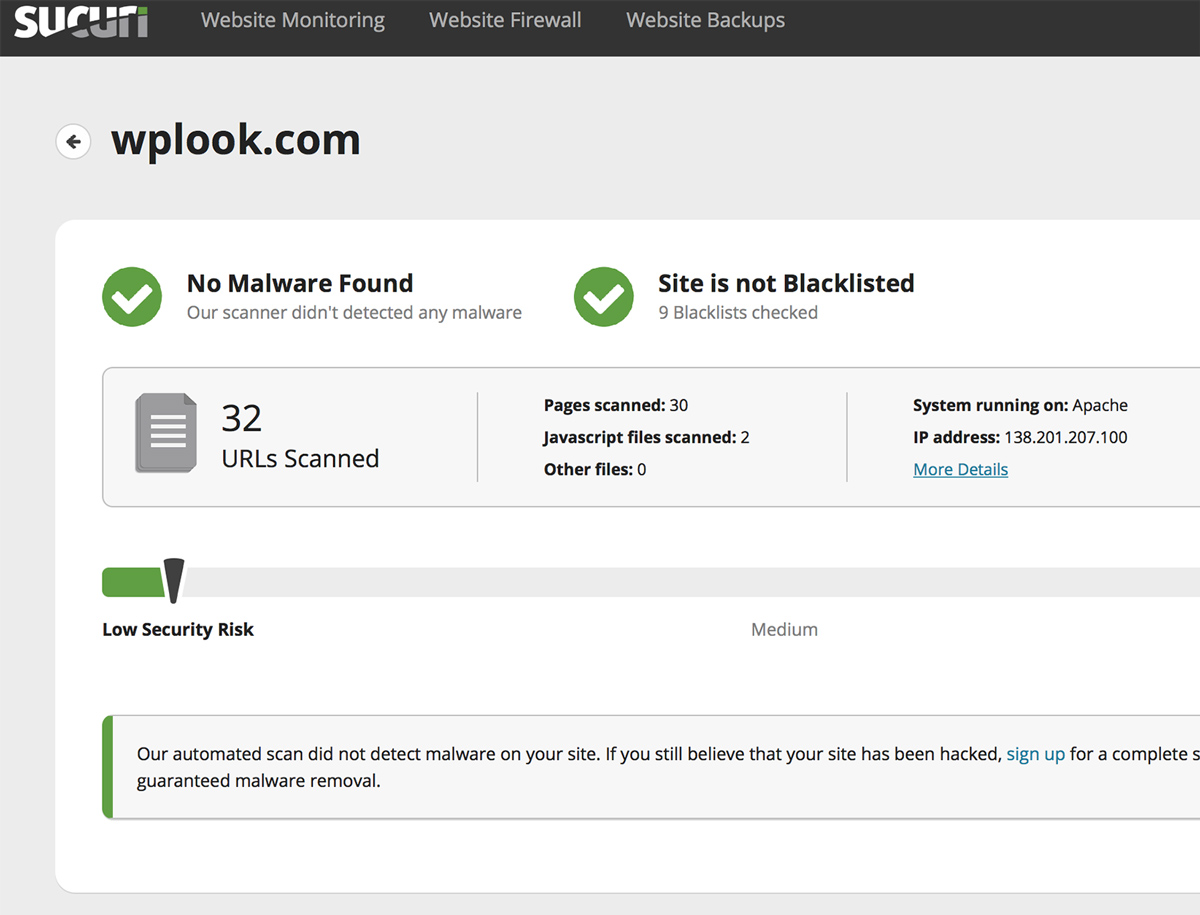
Sucuri is a major name in website security. Their free SiteCheck scanner is quick and thorough. Many WordPress owners use it as their primary security check.
SiteCheck scans for:
- Known malware
- Website defacements
- Outdated software
- Malicious scripts
- Blacklist status on multiple services
The tool checks blacklist status on Google Safe Browsing, Opera Browser, PhishTank, ESET, SiteAdvisor, and Yandex. It also provides resources for recovering hacked sites.
Scan with Sucuri6. CWatch

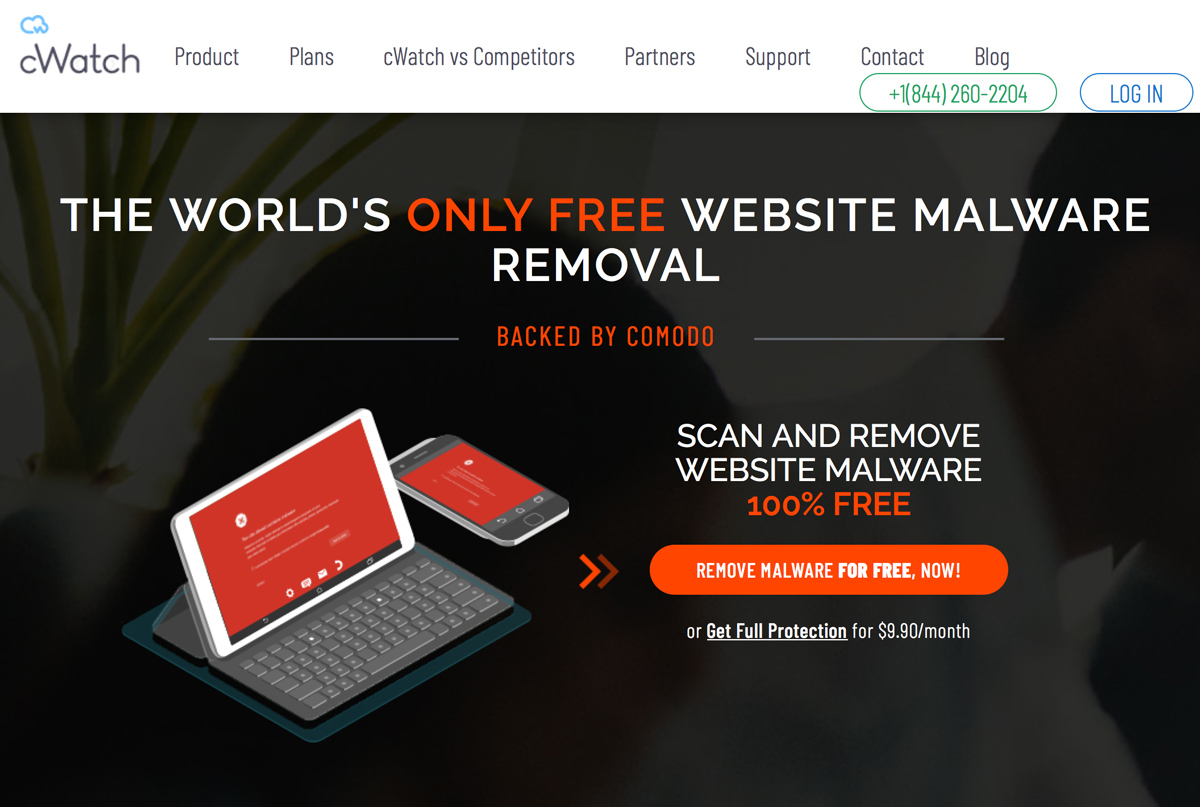
CWatch comes from Comodo, a trusted name in cybersecurity. The tool promises to remove malware within 30 minutes when detected.
Even beginners can use CWatch effectively. The interface explains problems clearly and points you toward solutions. Expert support is available 24/7.
Beyond detection, CWatch offers proactive protection from hackers. The free scan gives you insight into your security posture.
Scan with CWatch7. ScanURL
ScanURL is a simple URL checker. Enter any link and it checks against multiple security databases. Perfect for verifying suspicious links before clicking.
The tool queries Google Safe Browsing, PhishTank, and Web of Trust. You see immediately if a URL is flagged as dangerous.
Use ScanURL to check your own site or suspicious links you receive. It’s a quick safety check before visiting unknown pages.
8. VirusTotal
VirusTotal scans URLs against 70+ antivirus engines and website scanners. It’s the most comprehensive check available.
Features include:
- Multi-engine malware detection
- URL analysis
- Domain reports
- Community comments on threats
Google owns VirusTotal. The tool is completely free and handles massive scan volumes. Results aggregate data from multiple security vendors.
9. Mozilla Observatory
Mozilla Observatory focuses on website configuration security. It checks your HTTP headers, SSL configuration, and security policies.
The tool grades your site on security best practices. You get specific recommendations for improving your score.
This scanner catches different issues than malware scanners. It identifies configuration weaknesses that could be exploited.
How to Use These Tools
Best practices for security scanning:
- Scan weekly – Regular checks catch problems early
- Use multiple tools – Different scanners catch different issues
- Scan after changes – Check after installing plugins or updating themes
- Act on findings – Fix detected vulnerabilities promptly
- Document results – Track your security status over time
Beyond Scanning
Scanning detects problems. Prevention stops them before they start. Combine scanning with:
- Strong passwords and two-factor authentication
- Regular WordPress, theme, and plugin updates
- Quality hosting with built-in security
- SSL certificates for encrypted connections
- Regular backups for recovery
WPlook Hosting includes security features like firewalls, malware scanning, and SSL certificates. Start with a secure foundation.
Start Scanning Today
These free tools take minutes to use. They could save you from a devastating hack. Run a scan right now to see where you stand.
Security isn’t optional in 2026. Protect your WordPress site with regular scanning and proper security practices.
Frequently Asked Questions
How often should I scan my WordPress site for security issues?
Scan at least weekly for most sites. High-traffic or e-commerce sites should scan daily. Always scan after installing new plugins, updating themes, or making significant changes. Set up automated monitoring for continuous protection.
Why do different security scanners show different results?
Each scanner uses different databases and detection methods. Some focus on malware while others check configuration issues. No single tool catches everything. Using multiple scanners gives you the most complete picture of your security status.
What should I do if a scanner finds malware on my site?
First, don’t panic. Take your site offline if possible to prevent spreading infection. Restore from a clean backup if available. If not, manually remove infected files identified by the scanner. Update all passwords. Then investigate how the malware got in and fix that vulnerability.
Are free security scanners as good as paid ones?
Free scanners work well for basic checks. They detect common malware and blacklist status. Paid services typically offer deeper scanning, automatic monitoring, and cleanup assistance. For most small sites, free tools provide adequate protection when used regularly.
Can security scanners find all vulnerabilities?
No scanner catches everything. External scanners only see what’s publicly accessible. Some malware hides from detection. Server-level issues may not show up. Use scanners as one part of your security strategy along with strong passwords, updates, and secure hosting.
What does it mean if my site is blacklisted?
Blacklisting means security services flagged your site as dangerous. Google may show warnings. Browsers may block access. This usually happens after a malware infection. Clean your site completely, then request removal from each blacklist. The process varies by service.
Get Secure Hosting Get SSL Certificate