

Add New Event
You can add new events through Events → Add New Event in the WordPress Administration Panel.
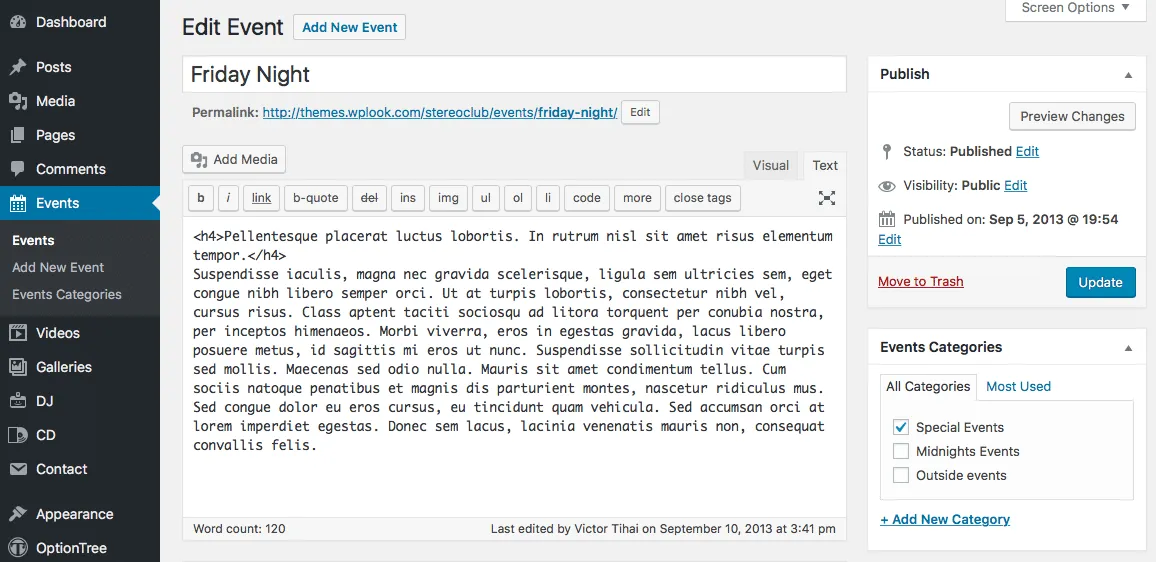
The Events → Add New Event screen.
Events contain most of the same options as standard posts. You can read about these in the Add New Post chapter. Additionally, they contain post options specific to events.
Event Options
Section titled “Event Options”Event Options are found below the editor on the Edit Event page. If the Event Options are not visible, make sure they are checked inside the Screen Options area at the top.
If you are adding a new event, make sure you have saved the post before editing event options. Otherwise, the event options will not be visible.
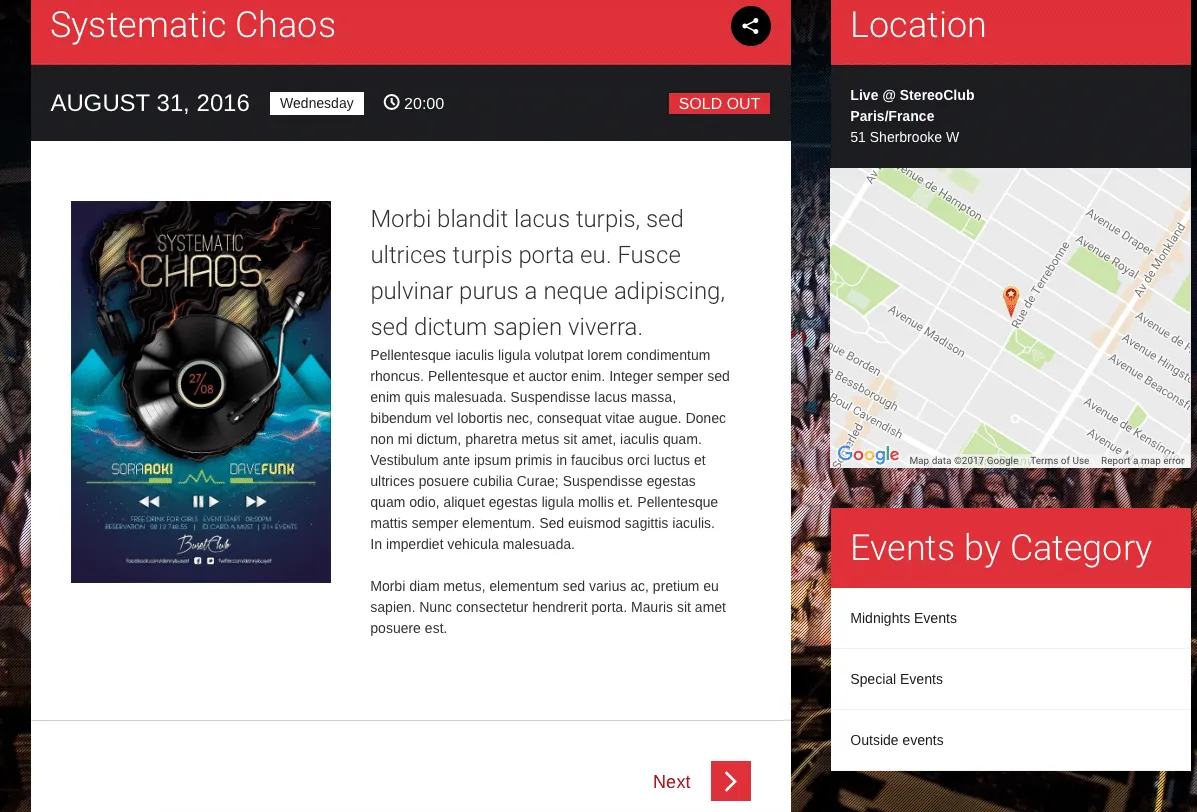
Individual page event
The image will display in the event page.
Date and time
Section titled “Date and time”This field denotes the date and time of this event. In the case of repeating events, please enter the start of the first occurrence of this event.
Event Price
Section titled “Event Price”Add the price for the entrance.
Event Status
Section titled “Event Status”Select the event status. ( for example: buy, sold out, canceled, free entry, etc.)
Buy URL
Section titled “Buy URL”Add the URL from where to buy the ticket.
Event location
Section titled “Event location”A user-friendly name of the location or building where the event will take place, such as Notman House.
Event address
Section titled “Event address”User-friendly address of the event which will be displayed above the map in the information panel. Consider including some directions or a description of your event location to make it easier to find.
City/Country
Section titled “City/Country”Add the event City and Country. Ex: Paris/France.
Event Google Maps location
Section titled “Event Google Maps location”Maps are displayed using Google Maps, so check your location is displayed correctly there before pasting it in here. These fields can accept any address, such as “51 Sherbrooke W., Montreal, QC“, as well as coordinates in the format latitude,longitude (such as “45.511892,-73.569732“) if you need something more precise. They cannot accept business names or landmark names, such as “Notman House“.
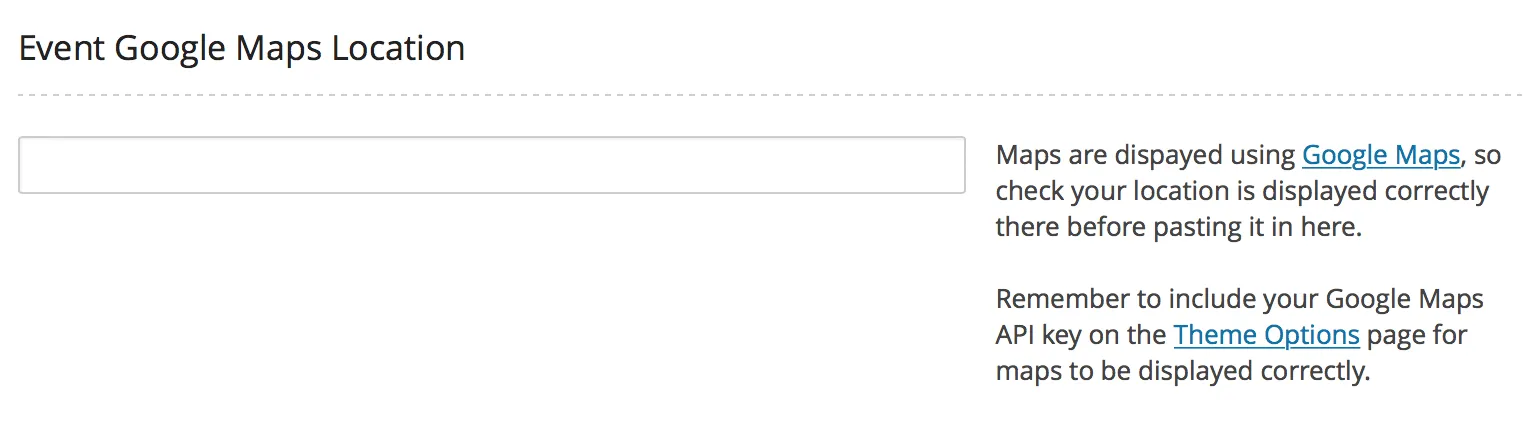
Setting a Google Maps location inside the theme.
If you’ve already entered latitude and longitude values separately before upgrading to versions of themes which accept addresses, these will continue to be used, but will no longer appear in the admin interface.
Remember to include your Google Maps API key on the Theme Options page for maps to be displayed correctly.
Pin map icon
Section titled “Pin map icon”The pin to be placed on the map in the location you set in Event Google Maps location. The recommended size for this is 64px x 64px, but any other size will also be handled correctly.
Share buttons
Section titled “Share buttons”Set to On to display the sharing buttons for Twitter, Facebook, Pinterest and Google+.
Display Sidebar
Section titled “Display Sidebar”Enable to display the sidebar on this page, disable to hide the sidebar and make the content take up the full width of the page.